

High level overview
If your website is hosted behind cloudflare, you can take advantage of Its very highly available and scalable services like Cloudflare workers and Cloudflare KV to show the sorry/maintainance page to the users during the scheduled/unscheduled maintainace at your origin. Your users would hit their nearest cloudflare edge location so the sorry page would be served very fast. The sorry page content would be in the Cloudflare KV(Key Value) store and Cloudflare workers would fetch it from the KV to show to the user. Cloudflare APIs enable automation of your choice to implement the sorry page seamlessly.
This post has details on how to implement it manually on cloudflare portal as well via automation.
- Manual implemention (becuase we want to test if this works at all)
- Automation (because we want to avoid human mistakes and empower other teams to make the changes)
- Logging and Monitoring ( becuase no prod change is complete without logging and monitoring)
The setup
Its a very simple set up and potentially mimics a majority of deployments.
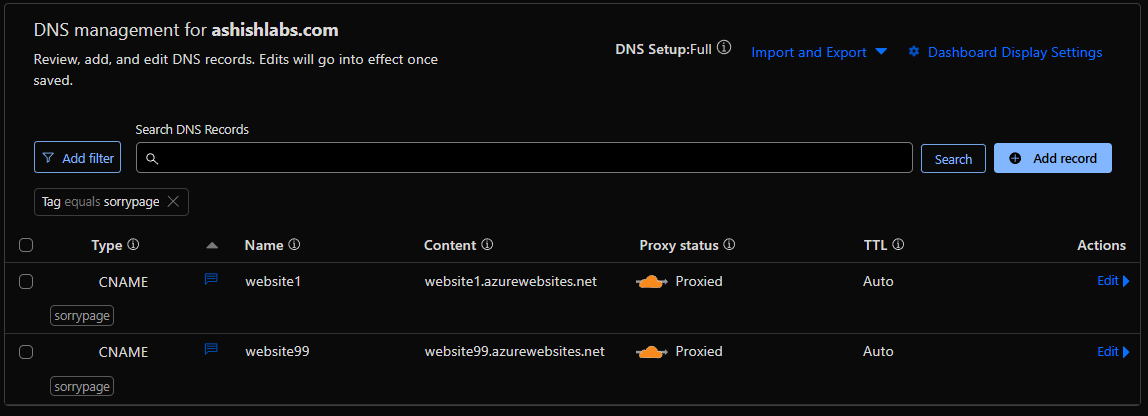
In this setup I have a zone ashishlabs.com which has two subdomains website1.ashishlabs.com and website99.ashishlabs.com which front
my websites on Azure app services – website1.azurewebsites.net and and website99.azurewebsite.net – aka the origins.
The origins accept requests only from Cloudflare IP addresses to prevent attackers bypassing Cloudflare and attacking the origin directly.

Cloudflare DNS management showing the subdomains and their respective origins and orange clouded – which means all the HTTP requests on website1 and website99.ashishlabs.com would hit cloudflare before going to their respective origins origin.
The setup with Cloudflare worker and KV
With this change, as usual user goes though cloudfare hitting Cludflare security protections first, then hitting cloudflare workers. Cloudflare worker then fetches the sorry page content and deliver to the user. The origins, Azure websites in this case does not serve any traffic.

Above setup is can be broken down into below steps:
- Create sorry page HTML content in Cloudflare KV
- Create Cloudflare worker with javascript code which fetchs content from KV
- Associate the worker with the zone via worker route
Create sorry page HTML content in Cloudflare KV
We need to first create a KV namespace.
On the Cloudflare account level, go to Storage & Databases > Workers KV
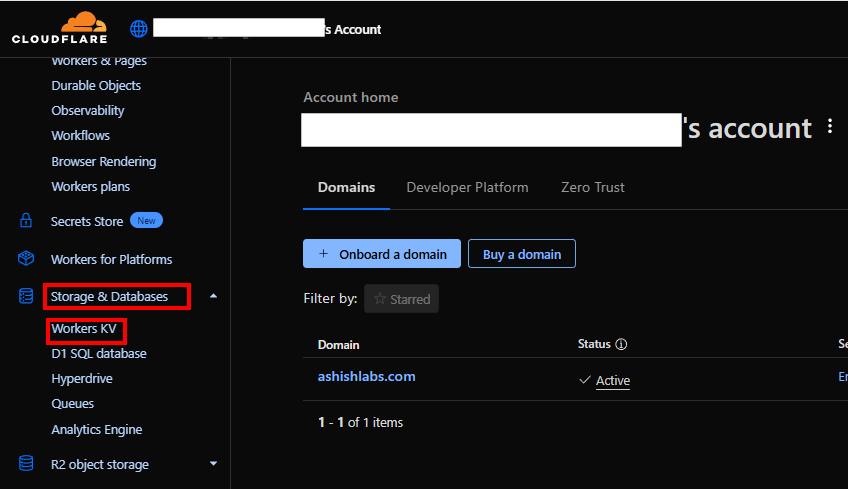
Click on “Create instance” and give a name


In the newly created namespace
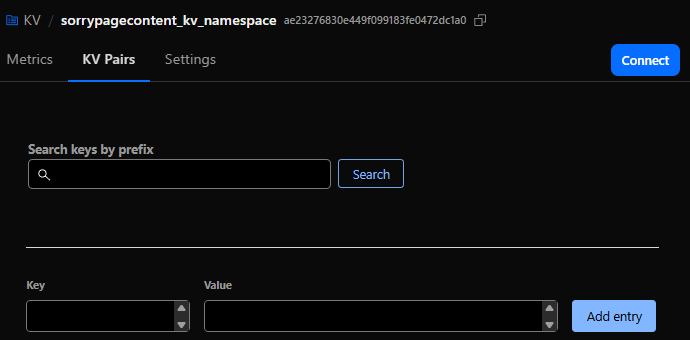
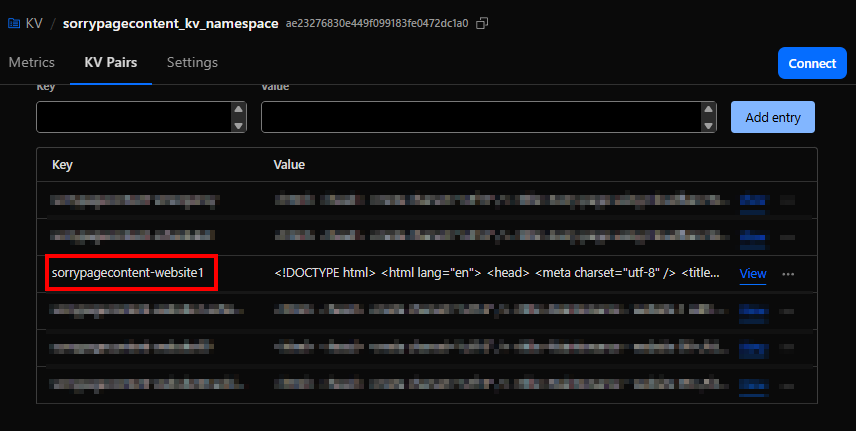
Add a key for the sorry page content and the HTML for the sorry page as the value and click on “Add entry”.

Create Cloudflare worker with javascript code
On Cloudflare account level go to Compute(Workers) > Workers & Pages.
Click Create.

you can use a template or existing github repo. In this example, I start with a “Hello World” example.
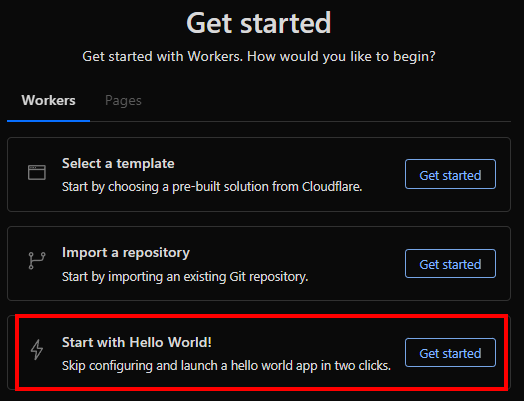
Give it a name “sorrypageworker1-website1” and deploy with sample code.

Click “Continue to project”

Click on “Add Binding”

Click on “KV namespace” on the left side and the click on “Add binding”.

Add a KV namespce binding by providing a name “SORRYPAGECONTENT1_KV_BINDING” and then selecting the namespace we created before and then click on “Add Binding”

Worker has now a binding to the KV to access the sorry page content.

Click on the “Edit code” icon to add your code.

The worker javascript
line 8 shows usage of the binding “SORRYPAGECONTENT1_KV_BINDING” we created to the KV to fetch the sorry page content by the key named “sorrypagecontent-website1”
// Worker code below which fetches the sorry page content from the KV store
export default {
  async fetch(request, env) {
    // Clone URL and force cache-busting (only at edge level)
    const url = new URL(request.url);
    url.searchParams.set("_maintenance", Date.now().toString());

    const html = await env.SORRYPAGECONTENT1_KV_BINDING.get("sorrypagecontent-website1", { type: "text" });

    if (!html) {
      return new Response("<html><body>Our website is currently undergoing scheduled maintenance.</body><html>",
      {
         status: 200,
         headers: {
          "Content-Type": "text/html",
          "Cache-Control": "no-cache, must-revalidate, max-age=0, no-store, private",
          "Pragma": "no-cache",
          "Expires": "0",
          "CF-Cache-Status": "DYNAMIC"
        }
      });
    }

    return new Response(html, {
      status: 200,
      headers: {
        "Content-Type": "text/html",
        "Cache-Control": "no-cache, must-revalidate, max-age=0, no-store, private",
        "Pragma": "no-cache",
        "Expires": "0",
        "CF-Cache-Status": "DYNAMIC"
      }
    });
  }
}
Clicking on the refresh icon would run the worker which would fetch the content of the sorry page. After previewing. please click “Deploy” which will deploy the code to the worker.

Associate the worker with the zone via worker route
Now that we the the cloudflare worker created and tested, we can associate this worker to the zone.
Worker routes > “Add route”

Enter the route as below.
website1.ashishlabs.com/*
Select the worker we created before
sorrypageworker1-website1
/* in the route ensures any path under website1.ashishlabs.com would invoke the worker which ensures the user would see the sorry page for ALL paths under website1.ashishlabs.com

The woute is now added.

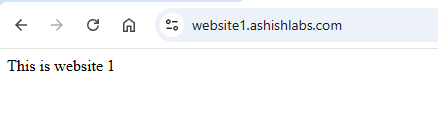
Access to website1.ashishlabs.com would now show the sorry page. In my tests Its from instant to 2 minutes after making route association.

Detach the worker from the website
On the account level, go to worker routes and click on the “Edit” for the route you want to detach.

Click “Remove”

Click “Remove” on the confirmation to remove the route.

Sorry page is now removed.
The automation of sorry pages
An approach could be to keep the worker, KV binding and KV store created before hand and then create the automation to do below things :
- Update the sorry page content in the KV.
- Attach/Detach the worker to the zone by attaching/detaching the route to bring up/bring down the sorry page.
Above would enable you bring up/down the sorry page with custom content as needed.
The API token and necessary permissions
On the account level, go to Manage Account > Account API token and create a custom token with below permissions.

Update the sorry page content in the KV
Below is a basic python script which updates the sorry page content from a local HTML file.
It needs below :
AccountId : Go to any zone and on the right side, you can see the account id.

KV Namespace Id : Go to the KV namespace where you have the sorry page content and get the ID from there.

KV key name : Get the KV key name which has the corresponding HTML content you want to update.
The python script
import requests
import sys

# Config - Please ensure these are not hardcoded in your script.
# They should be in config files or environment variables in the automation of your choice
CF_API_TOKEN = "<API-TOKEN>"
ACCOUNT_ID = "<CLOUDFLARE-ACCOUNT-ID>"
KV_NAMESPACE_ID = "<KV-NAMESPACE-ID>"
KEY_NAME = "sorrypagecontent-website1"
SORRY_PAGE_CONTENT_FILE = "sorrypage.html"

def update_kv_value(account_id, namespace_id, key, value, api_token):
    url = f"https://api.cloudflare.com/client/v4/accounts/{account_id}/storage/kv/namespaces/{namespace_id}/values/{key}"
    headers = {
        "Authorization": f"Bearer {api_token}",
        "Content-Type": "text/plain"
    }
    response = requests.put(url, headers=headers, data=value.encode("utf-8"))
    return response.json()

if __name__ == "__main__":
    try:
        with open(SORRY_PAGE_CONTENT_FILE, "r", encoding="utf-8") as f:
            html_content = f.read()
            print(html_content)
    except FileNotFoundError:
        print(f"File {SORRY_PAGE_CONTENT_FILE} not found.")
        sys.exit(1)

    result = update_kv_value(ACCOUNT_ID, KV_NAMESPACE_ID, KEY_NAME, html_content, CF_API_TOKEN)
    print(result)
Script to attach/detach the route
# cf_worker_route_min.py
# Usage:
#   python cf_worker_route_min.py attach "website.ashishlabs.com/*" "sorrypageworker1-website1"
#   python cf_worker_route_min.py detach "website.ashishlabs.com/*"

import os, sys, json, requests
from typing import Dict, List

CF_API = "https://api.cloudflare.com/client/v4"
CF_API_TOKEN = "<CF_API_TOKEN>"

def h(token: str) -> Dict[str, str]:
    return {"Authorization": f"Bearer {token}", "Content-Type": "application/json", "Accept": "application/json"}

def hostname_from_pattern(pattern: str) -> str:
    return pattern.split("/", 1)[0].strip()

def list_all_zones(token: str) -> List[Dict]:
    zones, page = [], 1
    while True:
        r = requests.get(f"{CF_API}/zones", headers=h(token), params={"page": page, "per_page": 50})
        r.raise_for_status()
        data = r.json()
        zones += data.get("result", [])
        if page >= data.get("result_info", {}).get("total_pages", 1):
            break
        page += 1
    return zones

def best_zone_for_host(token: str, host: str) -> Dict:
    zones = list_all_zones(token)
    cand = [z for z in zones if host == z["name"] or host.endswith("." + z["name"])]
    if not cand:
        raise RuntimeError(f"No zone you own matches host '{host}'.")
    cand.sort(key=lambda z: len(z["name"]), reverse=True)
    return cand[0]

def worker_exists(token: str, account_id: str, script_name: str) -> bool:
    r = requests.get(f"{CF_API}/accounts/{account_id}/workers/scripts/{script_name}", headers=h(token))
    if r.status_code == 404:
        return False
    r.raise_for_status()
    return True

def list_routes(token: str, zone_id: str) -> List[Dict]:
    r = requests.get(f"{CF_API}/zones/{zone_id}/workers/routes", headers=h(token))
    r.raise_for_status()
    return r.json().get("result", [])

def create_route(token: str, zone_id: str, pattern: str, script: str):
    r = requests.post(f"{CF_API}/zones/{zone_id}/workers/routes", headers=h(token),
                      data=json.dumps({"pattern": pattern, "script": script}))
    r.raise_for_status()

def update_route(token: str, zone_id: str, route_id: str, pattern: str, script: str):
    r = requests.put(f"{CF_API}/zones/{zone_id}/workers/routes/{route_id}", headers=h(token),
                     data=json.dumps({"pattern": pattern, "script": script}))
    r.raise_for_status()

def delete_route(token: str, zone_id: str, route_id: str):
    r = requests.delete(f"{CF_API}/zones/{zone_id}/workers/routes/{route_id}", headers=h(token))
    r.raise_for_status()

def attach(token: str, pattern: str, script: str):
    host = hostname_from_pattern(pattern)
    zone = best_zone_for_host(token, host)
    zone_id = zone["id"]
    account_id = zone["account"]["id"]

    print("host : " + host)
    print("pattern : " + pattern)
    print("worker : " + script)

    if not worker_exists(token, account_id, script):
        raise RuntimeError(f"Worker '{script}' not found in account {account_id}.")

    routes = list_routes(token, zone_id)
    exact = [r for r in routes if r.get("pattern") == pattern]
    if not exact:
        create_route(token, zone_id, pattern, script)
        print("OK: route created")
        return

    r0 = exact[0]
    if r0.get("script") == script:
        print("OK: route already attached")
        return

    update_route(token, zone_id, r0["id"], pattern, script)
    print("OK: route updated")

def detach(token: str, pattern: str):
    host = hostname_from_pattern(pattern)
    zone = best_zone_for_host(token, host)
    zone_id = zone["id"]
    print("host : " + host)
    print("pattern : " + pattern)
    routes = list_routes(token, zone_id)
    exact = [r for r in routes if r.get("pattern") == pattern]
    if not exact:
        print("OK: nothing to detach")
        return
    for r in exact:
        delete_route(token, zone_id, r["id"])
    print("OK: route deleted")

def main():
    if len(sys.argv) < 3:
        print("Usage:\n  attach <route-pattern> <worker-name>\n  detach <route-pattern>", file=sys.stderr)
        sys.exit(1)

    op = sys.argv[1].lower()
    pattern = sys.argv[2]
    script = sys.argv[3] if op == "attach" and len(sys.argv) >= 4 else None

    token = CF_API_TOKEN
    if not token:
        print("Set CF_API_TOKEN", file=sys.stderr)
        sys.exit(2)

    try:
        if op == "attach":
            if not script:
                print("attach requires <worker-name>", file=sys.stderr); sys.exit(3)
            attach(token, pattern, script)
        elif op == "detach":
            detach(token, pattern)
        else:
            print("First arg must be attach or detach", file=sys.stderr); sys.exit(4)
    except requests.HTTPError as e:
        print(f"ERR: HTTP {e.response.status_code} {e.response.text}", file=sys.stderr)
        sys.exit(5)
    except Exception as e:
        print(f"ERR: {e}", file=sys.stderr); sys.exit(6)

if __name__ == "__main__":
    main()
Tests
Attaching the route
python .\manage-worker-route.py attach "website1.ashishlabs.com/*" "sorrypageworker1-website1"

Detaching the route
python .\manage-worker-route.py detach "website1.ashishlabs.com/*" "sorrypageworker1-website1"

Depending upon your requirements, you can build a UI like below to not only set up templates for sorry pages but also their association to the zones via workers.
Manage sorry page templates
Add, update, detete and preview sorry page content.

Attaching sorry page to the zones.

Important note:
Its a good thing that the the cloudflare security rule (WAF/Custom rules/Managed rules etc) are applied before the requests reach cloudflare workers. This means for example if you have OFAC countries blocked, they would be blocked before like before workers.
Logging and monitoring
If you are a Cloudflare Enterprise customer, you can easily set up logpush with logs going to your monitorng platform. Specifically for workers (for sorry pages or anything involving workers), you want to include the below fields in the HTTP Requests datasets.
ParentRayID
Ray ID of the parent request if this request was made using a Worker script.
WorkerCPUTime
Amount of time in microseconds spent executing a Worker, if any.
WorkerScriptName
The Worker script name that made the request.
WorkerStatus
Status returned from Worker daemon.
WorkerSubrequest
Whether or not this request was a Worker subrequest.
WorkerSubrequestCount
Number of subrequests issued by a Worker when handling this request.
WorkerWallTimeUs
The elapsed time in microseconds between the start of a Worker invocation, and when the Workers Runtime determines that no more JavaScript needs to run.
Additional note
Firewall rule is another quick and dirty way of implementing sorry pages. Unfortunately this is not available in the free plan.
All you need to do is to create a rule with custom HTML content with block action.
The drawback I saw with this approach is the response code – which could be only 4xx which is not what I wanted. Typically you want 503 – service unavailable which could be achieved with Cloudflare workers with a lot more flexibility.

Conclusion
Cloudflare workers is a great way to very quicly set up sorry pages without any dependency on your origin. Hopefully you found this port helpful.






 Ashish Gupta