Entity framework – Code first – Disable pluralization of your tables

I have the following model :-

namespace AddressBook.Models
{
public class Contact
{
public int Id { get; set; }
public string FirstName { get; set; }
public string LastName { get; set; }
public string EmailAddress { get; set; }
}
}

The table name in the database :- “Contact”.

DbContext
public class AddressBookDb : DbContext
{
public DbSet<Contact> Contacts { get; set; }
protected override void OnModelCreating( DbModelBuilder dbModelBuilder)
{
dbModelBuilder.Conventions.Remove<PluralizingTableNameConvention>();
}

Using any of the views, gives the following error :-

Invalid object name dbo.Contacts.

Obviously, entity framework is trying to pluralize the table name and expecting the table with the pluralized named database. This would be a problem for existing tables which you obviously don’t want to rename.

Just override the OnModelCreating method and remove that “PluralizingTableNameConvention” convention.

protected override void OnModelCreating( DbModelBuilder dbModelBuilder)
{
dbModelBuilder.Conventions.Remove<PluralizingTableNameConvention>();
}

Note :- Need to add the namespace :- System.Data.Entity.ModelConfiguration.Conventions;

A beautiful poem

By Javed Akhtar

Dilon mein tum apni
Betaabiyan leke chal rahe ho
Toh zinda ho tum
Nazar mein khwabon ki
Bijliyan leke chal rahe ho
Toh zinda ho tum
Hawa ke jhokon ke jaise
Aazad rehno sikho
Tum ek dariya ke jaise
Lehron mein behna sikho
Har ek lamhe se tum milo
Khole apni bhaayein
Har ek pal ek naya samha
Dekhen yeh nigahaein
Jo apni aankhon mein
Hairaniyan leke chal rahe ho
Toh zinda ho tum
Dilon mein tum apni
Betaabiyan leke chal rahe ho
Toh zinda ho tum


English Translation

If you carry impatience in your heart then you are alive
If you carry dreams in your eyes then you are alive
Learn to live like the free waves of wind
Learn to flow like the sea does as waves
Receive every moment in life with open arms
Every moment is a new beginning seeing with your eyes
If you carry surprise in your eyes then you are alive
If you carry impatience in your heart then you are alive

Adding custom pane to the ribbon in Microsoft Word 2007 using OpenXML SDK 2.0 and VBA

Source code
In the last article we looked at how we add ribbon to a word document, how do we add controls to the ribbon and how do we provide interactivity to the ribbon controls and our tab looked like this:-

clip_image002

However, what if we have more links or more contacts (which is indeed is the case).

clip_image004

Looks clumsy, isn’t it? Also, it would get clumsier if we have more links and contacts. So what If we have something like this:-

clip_image006

Notice the little downward arrow at the right corner of each group. Clicking each would open a pane showing all the links/email addresses. Again clicking any link/email address in the custom pane would insert the link/email in the document. This way we show very few things to the user (thereby not making the ribbon clumsy) and If user wants to see more, he opens the pane to see more. This is very similar to the “Font” group in the “Home” tab.

This time we will make changes to the existing solution and following are the changes:-

a) Prepare the list of hyperlinks and email addresses to be shown to the user in the custom pane.

b) Creating the custom panes

c) Adding data to the custom panes

d) Creating that clip_image008 (dialog launcher) button (the button when when clicked will open the custom pane)

e) Add interactivity for the custom pane.

a) Prepare the list of hyperlinks and email addresses to be shown to the user in the custom pane :-

One way we can add the list of hyperlinks and the email addresses to the document is to add them as XML fragments (also called “CustomXmlParts”). Following is how we do it:-

i) Create XML for the list we want to show in the pane. Data for this XML can also come from the database.

clip_image010

ii) Add the XML to the document as CustomXmlPart

clip_image012

AddCustomXmlPartsToDocument():-

149-150 – Delete all the existing CustomXMLParts from the document.

152-153 – Add the TextHyperlinks XML to the document as CustomXMLPart by calling AddCustomXmlPart()

155-156 – Add the EmailLinks XML to the document as CustomXMLPart by calling AddCustomXmlPart()

iii) Add the call to AddCustomXmlPartsToDocument() to the AddRibbonToDocument()

clip_image014

At this point of time if we run the application, the word document does not contain anything visiblely different in the Microsoft word. However, If you zip and unzip it, you should see the custom XML parts as separate files in the zipped file.

clip_image016

clip_image018

clip_image020

There must be a way to give a proper name to the CustomXMLPart. I need to see that as well. That, however is not important for this example.


b) Creating the custom panes :-

We need two custom panes. One for the hyperlinks and other for the email addresses.

Open the “TheDocumentWithMacros.docm” and open the developer tab. Add two “User Forms”

clip_image022

In each “User Form”, add a listbox. My project explorer looks like this:-

clip_image024

“EmailLinksPane” user form contains a listbox with name “lstTextHyperlinks” and “TextHyperlinksPane” user form contains a listbox named “lstEmailLinks”.

Remember we created these user forms in the “TheDocumentWithMacro” and the all the user forms and the associated controls (listbox) will get copied to the document just like the macros get copied.


c) Adding data to the custom panes:-

We need to add data to the custom panes when the ribbon loads. CustomIUI XML provide a onLoad event on the ribbon element. (not showing whole of XML below)

clip_image026

That “RibbonLoad” is a VBA subroutine. We can get the customXMLParts from the document and put them in global variables. When the user clicks on the clip_image008[1] button, we fill the listboxes with the corresponding global variable. Following

clip_image028

clip_image030

clip_image032

d) Creating that clip_image008[2] button

clip_image008[3] is a dialogbox launcher. Following is the modified ribbon XML with added part highlighted:-clip_image034

At this point of time if we run the application, we should see the button (clip_image008[4]) for both the links and the contacts group.

clip_image036

e) Adding interactivity for the custom pane :-

Notice the dialogbox launcher has a button which has a action handler for onAction. In that action handler, we will load the listbox of the corresponding user form with the global variable created on ribbon onload and show the user form to the user.

clip_image038

clip_image040

At this point of time if we run the application, we should be able to show/hide the hyperlinks/email panes from the document.

User should also be able to insert the hyperlinks/email from the custom pane. For that, we need to add the code in the listbox click event which will call the same function which is called when you click a visible button which is right on the ribbon.

This is for the hyperlinks custom pane list-

clip_image042

This is for the emails custom pane list:-

clip_image044

Now If you click on any hyperlink/email item in the corresponding listbox, the hyperlink/email will be inserted in the document.

Customizing Ribbon in Office 2007 using Open Office XML and VBA

Code for this article can be downloaded from here.

Ribbon:-

clip_image002

clip_image004

From http://office.microsoft.com/en-gb/help/use-the-ribbon-HA010089895.aspx :-“The Ribbon is designed to help you quickly find the commands that you need to complete a task. Commands are organized in logical groups, which are collected together under tabs. Each tab relates to a type of activity, such as writing or laying out a page. To reduce clutter, some tabs are shown only when needed. For example, the Picture Tools tab is shown only when a picture is selected.”

What to expect from this article:-

At the end of this article you should be able to customize the ribbon.

clip_image006

We will add a tab named “My Zone” containing two groups, “My links” and “My Contacts” containing your web site links and email addresses of your contacts.

clip_image008

When you click on any of the “links” in the “My Links” group, that link will get added to the document at the current position of the cursor.

clip_image010
clip_image012

Ribbon XML:-

From http://msdn.microsoft.com/en-us/library/aa942866.aspx:-

The Ribbon (XML) item enables you to customize a Ribbon by using XML. Use the Ribbon (XML) item if you want to customize the Ribbon in a way that is not supported by the Ribbon (Visual Designer) item

Example RibbonXML:-

<customUI xmlns="http://schemas.microsoft.com/office/2006/01/customui" onLoad="RibbonLoad">
<ribbon>
<tabs>
<tab id="tabMyZone" label="My Zone">
<group id="grpLinks" label="My links">
<button id="Google" label="Google" tag="http://www.google.com"/>
<button id="Facebook" label="Facebook" tag="http://www.facebook.com"/>
<button id="Gmail" label="Gmail" tag="http://www.gmail.com"/>
</group>
<group id="grpEmailAddresses" label="My Contacts">
<button id="e1" label="Ashish Gupta" tag="ashish.kuber@wipro.com"/>
<button id="e2" label="Sachin Tendulkar" tag="sachinrt@yahoo.com"/>
<button id="e3" label="James Hetfield" tag="James.Hetfield@metallica.com"/>
</group>
</tab>
</tabs>
</ribbon>
</customUI>

How to add RibbonXML(CustomUI XML) to the word using OpenXML SDK

Pre-requisite :- Open XML SDK 2.0 which can be downloaded from here. (Download the OpenXMLSDKv2.msi which is about 4 MB in size)

Additional tools :-

a) The schema for ribbon XML which can be downloaded from here.

b) Custom UI Editor which allows you to add a custom UI part to a document. This can be downloaded from here.

Lets Start….

Create a console application and add a empty word document to it. The document should be macro-enabled (with .docm) extension. Add the Xml for the Ribbon as well. My solution explorer looks like this :-

clip_image002[8]

For the purpose of the example in this document we will have a Ribbon XML created already and we would put the same into an existing word document on run-time.

static string documentName = "document.docm";
static string ribbonXMLFileName = "Ribbon.xml";
static void Main(string[] args)
{
   byte[] updatedByteContent = AddRibbonToDocument(File.ReadAllBytes(documentName));
   if (updatedByteContent != null)
   {
         using (FileStream fileStream = new FileStream(documentName, FileMode.Create))
         {
             fileStream.Write(updatedByteContent, 0, updatedByteContent.Length);
         }

   }
   if (File.Exists(documentName)) 
   {
    Process.Start(documentName);
   }

}

Line 6:- Reads the contents of the document.docm file and pass the binary content to the AddRibbonToDocument() method which will add the ribbon to the document.

Line 7-14:- The binary content of the file (which also contains the ribbon now) is written to the same file as original and opened.

Add the below method in Program.cs. This method takes the binary content of a word file and adds the Ribbon XML to it.

public static byte[] AddRibbonToDocument(byte[] documentContent)
{
   byte[] updatedDocumentContent = null;
   if (documentContent != null)
   {
       using (MemoryStream memoryStream = new MemoryStream())
       {
         memoryStream.Write(documentContent, 0, documentContent.Length);
         string ribbonXMLAsString = GetRibbonXML().ToString();
         using (WordprocessingDocument myDoc = WordprocessingDocument.Open(memoryStream, true))
         {
           MainDocumentPart mainPart = myDoc.MainDocumentPart;
           if (myDoc.GetPartsCountOfType<RibbonExtensibilityPart>() > 0)
           {
                myDoc.DeletePart(myDoc.GetPartsOfType<RibbonExtensibilityPart>().First());
           }  

           RibbonExtensibilityPart ribbonExtensibilityPart = myDoc.AddNewPart<RibbonExtensibilityPart>();
           ribbonExtensibilityPart.CustomUI = new DocumentFormat.OpenXml.Office.CustomUI.CustomUI(ribbonXMLAsString);
           myDoc.CreateRelationshipToPart(ribbonExtensibilityPart);
         }

         updatedDocumentContent = memoryStream.ToArray();
       }

    }

    return updatedDocumentContent;
}

Line 4-8 :- The binary content of the document is put in a MemoryStream which will be used for any modification in the content.

Line 9 :– The ribbon XML is got from the GetRibbonXML() method which can either get the XML from a static file or dynamically construct from the database values.

Line 10 :- WordProcessingDocument object is initialized from the memorysteam of the document content. The second parameter of the constructor is “IsEditable” is set to true as we are going to modify its content.

Line 14- 15 :- Get the main document part from the wordprocessing document and delete any existing custom ribbon from it.

Line 17 – 19 :- Content of the ribbon XML needs to be added as a RibbonExtensibilityPart to the main document and a relationship will be created for the same. Infact any type of content you add to a document as a part, you must create its (part’s) relationship with the document so that document can load up that part when you open the document in MSWord (or in general MS Office).

So, at this point of time If you run the application, the document.docm should get opened and you should see the tab and the buttons.

clip_image008

More explanation on line 17-19

Document structure before you ran the above code :-

clip_image002[10]

Look at the _rels/.rels file. You don’t see anything related to Custom UI here.

clip_image004[6]

Document structure after the above code is run:-

You will see a customUI folder created here:-

clip_image006[5]

Open the CustomUI folder and the file inside it will contain the same ribbonXml you inserted using the code above:-

clip_image008[5]

Look at the _rels/.rels file. You will see a new entry stating the relationship with the CustomUI.xml file here.

clip_image010[6]

btw, If you click on any of the buttons now, nothing would happen as we haven’t added any interactivity features to those buttons.

Adding interactivity to the ribbon elements:-

1) Make a copy of the Document.docm and rename the copied document to “DocumentWithMacros.docm”. Open the developer tab and insert a “Module” to the project.

clip_image002[13]


2) Rename the module to OfficeMacroHelper:-

clip_image004[9]

3) Add the following macro code to the module. Then save and close the word file:-

Sub CreateTextHyperLink(control As IRibbonControl)
 CreateHyperlink control.Tag, control.id
End Sub

Sub InsertTextHyperlink(hyperlink As String, textTodisplay As String)
 CreateHyperlink hyperlink, textTodisplay
End Sub

Sub CreateEmailHyperLink(control As IRibbonControl)
 InsertEmailHyperliink control.Tag, control.Tag
End Sub

Sub InsertEmailHyperliink(hyperlink As String, textTodisplay As String)
 Dim emailLink As String
 emailLink = "mailto:" & hyperlink
 CreateHyperlink emailLink, textTodisplay
End Sub

Sub CreateHyperlink(address As String, textTodisplay As String)
 ActiveDocument.Hyperlinks.Add Anchor:=Selection.Range, address:="" & address & "", SubAddress:="", textTodisplay:="" & textTodisplay & ""
End Sub

4) At this point of time if you view the TheDocumentWithMacros.docm, you see vbaProject.bin. This file has got the binary form of all the macros the document contains. This is what we need to copy in our main document (document.docm).

clip_image002[15]

5) Now we have the macros in “TheDocumentWithMacro.docm”. Its time to call them from our main document “Document.docm”.We call those macro functions from the onAction event of the button.

<customUI xmlns="http://schemas.microsoft.com/office/2006/01/customui">
    <ribbon>
        <tabs>
             <tab id="tabMyZone" label="My Zone">
             <group id="grpLinks" label="My links">
                <button id="Google"   label="Google" tag="http://www.google.com"  onAction="CreateTextHyperLink"/>
                <button id="Facebook" label="Facebook" tag="http://www.facebook.com" onAction="CreateTextHyperLink"/>
                <button id="Gmail" label="Gmail" tag="http://www.gmail.com"  onAction="CreateTextHyperLink"/>
             </group>

             <group id="grpEmailAddresses" label="My Contacts">
                <button id="e1" label="Ashish Gupta" tag="ashish.kuber@wipro.com"  onAction="CreateEmailHyperLink"/>
                <button id="e2" label="Sachin Tendulkar" tag="sachinrt@yahoo.com"        onAction="CreateEmailHyperLink"/>
                <button id="e3" label="James Hetfield" tag="James.Hetfield@metallica.com" onAction="CreateEmailHyperLink"/>
             </group>
        </tab>
        </tabs>
    </ribbon>
</customUI>

6) Copy the macro code from the “TheDocumentWithMacro.docm” to the “Document.docm”:-

public static void CopyMacro(byte[] documentWithMacroContent, WordprocessingDocument document)
{
   const string vbaProjectRelationShipType = "http://schemas.microsoft.com/office/2006/relationships/vbaProject";
   VbaProjectPart vbaProjectPart = null;
   using (MemoryStream memoryStream = new MemoryStream(documentWithMacroContent, false))
   {
       using (WordprocessingDocument documentWithMacro = WordprocessingDocument.Open(memoryStream, false))
       {
           MainDocumentPart mainPart = documentWithMacro.MainDocumentPart;
           foreach (IdPartPair partPair in mainPart.Parts)
           {
             if (partPair.OpenXmlPart.RelationshipType == vbaProjectRelationShipType)
             {
                vbaProjectPart = (VbaProjectPart)partPair.OpenXmlPart;
                break;
             }
           }
 
           MainDocumentPart mainPart1 = document.MainDocumentPart;
           ExtendedPart extendedPart = null;
           foreach (IdPartPair partPair in mainPart1.Parts)
           {
             if (partPair.OpenXmlPart.RelationshipType == vbaProjectRelationShipType)
             {
                 extendedPart = (ExtendedPart)partPair.OpenXmlPart;
                 break;
             }
           }

           if (extendedPart != null)
           mainPart1.DeletePart(extendedPart);

           if (vbaProjectPart != null)
           mainPart1.AddPart<VbaProjectPart>(vbaProjectPart);
        }

    }

}

Line 11- 18 :- Get the VbaProjectPart from the document with macro.

Line 20-29  :- Get the VbaProjectPart from the document.

Line 31-32  :- Delete the existing VbaProjectPart from the document If any.

Line 34-35  :- Add the VbaProjectPart got from the Line (125-133) to the document.

7) Get the binary content of the “TheDocumentWithMacro.docm” (line 7).

static string fileName = "document.docm";
static string ribbonXMLFileName = "Ribbon.xml";
static string documentWithMacroFileName = "TheDocumentWithMacro.docm";
static byte[] documentWithMacroContent;
static void Main(string[] args)
{
   documentWithMacroContent = File.ReadAllBytes(documentWithMacroFileName);
   byte[] updatedByteContent = AddRibbonToDocument(File.ReadAllBytes(fileName));
   if (updatedByteContent != null)
   {
      using (FileStream fileStream = new FileStream(fileName, FileMode.Create))
      {
         fileStream.Write(updatedByteContent, 0, updatedByteContent.Length);
      }
   }
   
   if (File.Exists(fileName)) Process.Start(fileName);
}

8) Modify the AddRibbonToDocument() to add call to CopyMacro() method (line 20).

public static byte[] AddRibbonToDocument(byte[] documentContent)
{
  byte[] updatedDocumentContent = null;
  if (documentContent != null)
  {
     using (MemoryStream memoryStream = new MemoryStream())
     {
        memoryStream.Write(documentContent, 0, documentContent.Length);
        string ribbonXMLAsString = GetRibbonXML().ToString();
        using (WordprocessingDocument myDoc = WordprocessingDocument.Open(memoryStream, true))
        {
           MainDocumentPart mainPart = myDoc.MainDocumentPart;
           if (myDoc.GetPartsCountOfType<RibbonExtensibilityPart>() > 0)
                myDoc.DeletePart(myDoc.GetPartsOfType<RibbonExtensibilityPart>().First());

           RibbonExtensibilityPart ribbonExtensibilityPart = myDoc.AddNewPart<RibbonExtensibilityPart>();
           ribbonExtensibilityPart.CustomUI = new DocumentFormat.OpenXml.Office.CustomUI.CustomUI(ribbonXMLAsString);
           myDoc.CreateRelationshipToPart(ribbonExtensibilityPart);
           CopyMacro(documentWithMacroContent, myDoc);
        }
       updatedDocumentContent = memoryStream.ToArray();
     }
  }
  return updatedDocumentContent;
}

At this point of time, If you run the application you should see the buttons on the newly added tab. Clicking on the buttons embed links on the document.

NOTE :- If you are like me, you must be thinking of creating the VBProject dynamically to the document.docm file rather than maintaining another file (ThedocumentWithMacro.docm) and copying from the same. Although theoretically Its possible, Its way too complex to implement or I just dont have the time to implement that way. See this msdn.microsoft.com/en-us/library/cc313094(v=office.12).aspx.

New APIs in System.IO

Have a look at some of the new APIs in introduced in System.IO which makes some of the tasks efficient – both performance as well as memory wise.

For example, there are instances when we need the total number of files in a given directory (recursively). In those instances, we think of following two methods :-

System.IO.DirectoryInfo.GetFiles() which returns FileInfo[]

System.IO.Directory.GetFiles() which returns string[] (which contains names)

.NET 4.0 introduced some new methods for IO and two of which are :-

System.IO.DirectoryInfo.EnumerateFiles() which returns IEnumerable<FileInfo>

System.IO.Directory. EnumerateFiles() which returns IEnumerable<string> (which contains names)

Why these two new methods? Because they are efficient because when we use them we don’t have to wait for thw whole FileInfo[] or String[] to return before we could access the collection. From MSDN:-

TheEnumerateFilesandGetFilesmethods differ as follows: When you useEnumerateFiles, you can start enumerating the collection ofFileInfoobjects before the whole collection is returned; when you useGetFiles, you must wait for the whole array ofFileInfoobjects to be returned before you can access the array. Therefore, when you are working with many files and directories,EnumerateFilescan be more efficient.”

I did some performance comparison ( a small project attached ) and following are the results :-

For 56505 number of files :-

Methods Time taken (in milliseconds) Memory used (in Kilobytes)
DirectoryInfo.GetFiles() 3393 31004
DirectoryInfo.EnumerateFiles() 3365 6223
Directory.GetFiles() 3001 24888
Directory.EnumerateFiles() 2961 6992

As you can see DirectoryInfo.EnumerateFiles() is faster than DirectoryInfo.GetFiles() and more importantly occupies almost 1/5 of memory in comparison.

Also, regarding Directory.GetFiles(), It is used to fetch the names of the files. But as we can see one can use Directory.EnumerateFiles() which is faster and occupies almost 1/4th of the memory in comparison.

clip_image002

[Task manager showing memory occupied by DirectoryInfo.GetFiles()]

clip_image004

[Task manager showing memory occupied by DirectoryInfo.EnumerateFiles()]

Therefore, when we need to enumerate large number of files, we can look at EnumerateFiles() method.

SQL Server – Generate the data script (insert script) for existing data in tables

How to generate the data script for SQL server 2008 database tables

Right click on the database where your table exists > Tasks > Generate Scripts

image

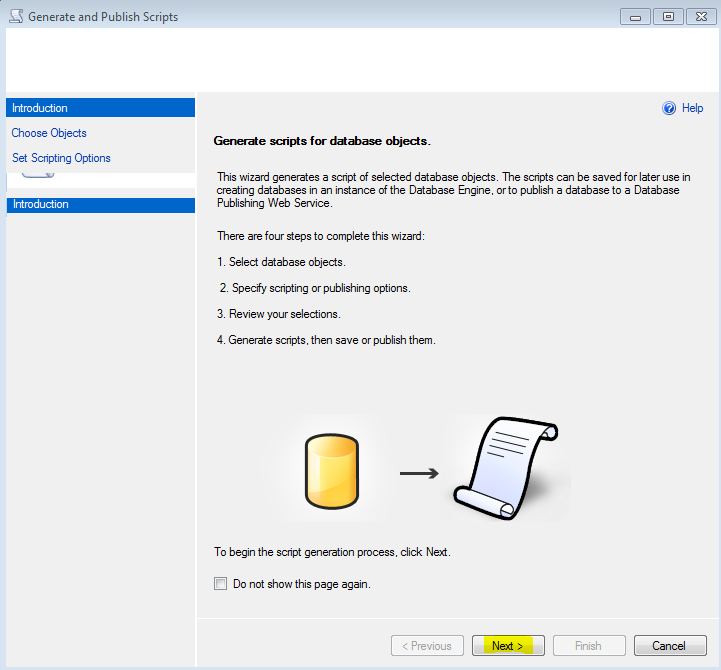
Click Next on the below screenimage

Choose “Select specific database objects” radio button, expand the tables and choose the table for which the data script needs to be generated and click Next.image

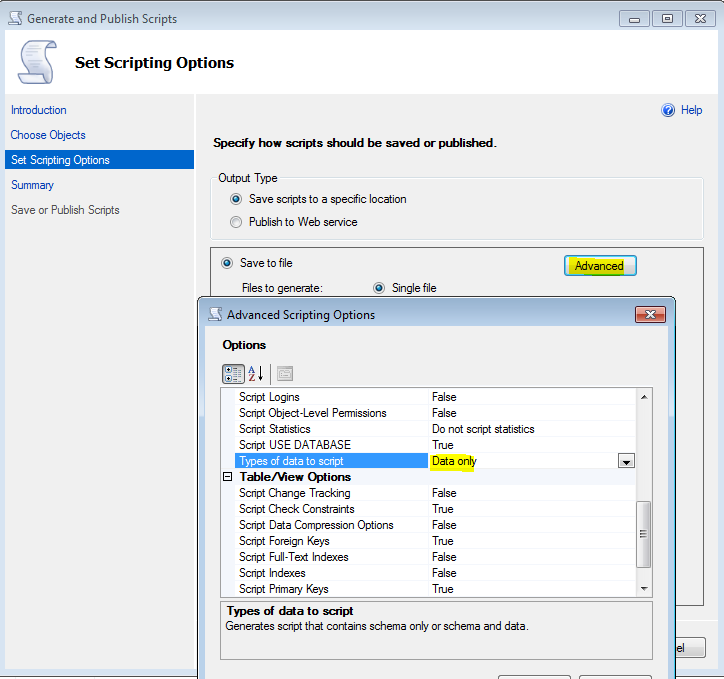
On the below screen, click “Advanced” and then select “Data only” option from the “Types of data to script”.
By default “Schema only” option is selected. You can also select “Schema and data” option for both creating table and also for the insert scripts.image

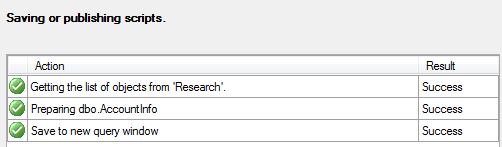
Choose where to save the insert script (File/Query window/Clipboard) and click on Next.You can see the progress and will see the generated insert script.
image

IMPORTANT NOTES  –
A) If your table has large amount of data (like mine in this case having 5000K records, Use the “Save to file” option to save the script and It will generate the script file containing all the insert queries just fine. If you use “copy to clipboad” or a “New Query Window option”, the generation will fail with Out of Memory Exception.

B) ALWAYS enclose the insert scripts in transaction with TRY CATCH block before running them. You don’t want partial inserts on your table – do you?


How to generate the data script for SQL server 2005 database tables

Good thing is you can generate the data script of SQL server 2005 database objects from SQL server 2008 management studio. This is how you do it.

a) In the SQL Management studio, right click on the database and select “Task > Generate Scripts ”. A wizard will be launched.
b)  Select the database you want to generate the script from.
c) In the “Choose Script option” step of the Wizard, select the “Script data” as true:-

clip_image002

d) Proceed on to generate the script and It will generate the data script as well.

Using Unity Application Block 2.0 – The given assembly name or codebase was invalid. (Exception from HRESULT: 0x80131047)

I was trying to use Unity Apllication Block this morning and following is the code I wrote:-

Interfaces (In the assembly named “Interfaces”. In project :- Interfaces)
namespace Interfaces
{
public interface IDoSomeWork1
{
string DoSomeWork1();
}
}

namespace Interfaces
{
public interface IDoSomeWork2
{
string DoSomeWork2();
}
}

Dependencies (In the assembly named “Entities”. In project :- Entities)
namespace Entities
{
public class ClassB : IDoSomeWork1
{
public string DoSomeWork1()
{
return this.ToString();
}
}
}

namespace Entities
{
public class ClassC : IDoSomeWork2
{
public string DoSomeWork2()
{
return this.ToString();
}
}
}

Class (In project :- UsingUnity)
public class ClassA
{
[Dependency]
public IDoSomeWork1 DoSomeWork1 { get; set; }
[Dependency]
public IDoSomeWork2 DoSomeWork2 { get; set; }

public void SomeMethodInClassA()
{
Console.WriteLine(DoSomeWork1.DoSomeWork1());
Console.WriteLine(DoSomeWork2.DoSomeWork2());
}
}

App.Config (In a console application project :- ConsoleUsingUnity)
<?xml version="1.0" encoding="utf-8" ?>
<configuration>
<configSections>
<section name="unity"
type="Microsoft.Practices.Unity.Configuration.UnityConfigurationSection,
Microsoft.Practices.Unity.Configuration" />
</configSections>
<unity>
<containers>
<container>
<types>
<type type="Interfaces.IDoSomeWork1, Interfaces"
mapTo="Entities.ClassB, Entities" />
<type type="Interfaces.IDoSomeWork2, Interfaces"
mapTo="Entities.ClassC, Entities" />
</types>
</container>
</containers>
</unity>
</configuration>

The client (In a console application project :- ConsoleUsingUnity)
public class Class1
{
static void Main(string[] args)
{
IUnityContainer container = new UnityContainer();

// Load from config file
UnityConfigurationSection section = (UnityConfigurationSection)ConfigurationManager.GetSection(“unity”);
section.Configure(container);

ClassA classA = container.Resolve<ClassA>();
classA.SomeMethodInClassA();
}
}

And when I run the client, I get the following error at section.Configure(container);:-

The given assembly name or codebase was invalid. (Exception from HRESULT: 0x80131047)

Solution
I must state that the code above didn’t give me any problem (build error etc.). It just gave me the error I stated in my question. The problem with Unity at this point of time is that It does not provide which assembly or a which types in the assembly could not be loaded. This is a requested feature.

In my case It was a missing assembly problem. I didn’t reference Entities assembly in to the client application project. It seems that that “Entities” assembly could be resolved only at the run-time (since it didn’t give me any compile time error). However, the run-time error was also not useful at all.

I had a look a Fusion Log viewer (It should be in the .NET SDK folder). What a gem of an utility It is. It can log all kind of assembly bindings (all or only failures) and It give a very neat description of which assembly could not load. Very helpful! FailedToLoadAssemblyDetected

Log

I added the the reference of the “Entities” assembly to the client application and It was able to call methods from the dependencies (ClassB and ClassC).

So, next time, you get this “The given assembly name or codebase was invalid” error, try Fusion Log Viewer. It wont help you in finding which types couldn’t be loaded. However,at least you will be sure all your assemblies are getting loaded correctly.

Bulk insert using OpenXML

— Tables
CREATE TABLE Singer
(
Id int,
Name varchar(200)
)

CREATE TABLE SingerGenere
(
SingerId int,
GenereId int
)

CREATE TABLE Genere
(
ID int,
Name varchar(200)
)

Data

— Singers
INSERT INTO Singer
VALUES (1, ‘Joe’)

INSERT INTO Singer
VALUES (2, ‘MJ’)

INSERT INTO Singer
VALUES (3, ‘ACDC’)

— Genere
INSERT INTOh Genere
VALUES
(1, ‘Rock’)

INSERT INTO Genere
VALUES
(2, ‘POP’)

INSERT INTO Genere
VALUES
(3, ‘Heavy Metal’)

— Singer – Genere mapping
INSERT INTO SingerGenere
(SingerId, GenereId)
VALUES (1,1)

INSERT INTO SingerGenere
(SingerId, GenereId)
VALUES (2,2)

INSERT INTO SingerGenere
(SingerId, GenereId)
VALUES (3,3)

The stored procedure :-

CREATE PROCEDURE GetSingersGenere
(@SingerData XML)
AS
BEGIN
DECLARE @hDoc int
exec sp_xml_preparedocument @hDoc OUTPUT,@SingerData
IF OBject_id(‘SingerGenereTable’) IS NOT NULL
BEGIN
DROP TABLE SingerGenereTable
END
CREATE TABLE SingerGenereTable
(
SingerName varchar(200),
GenereName varchar(200)
)

INSERT INTO SingerGenereTable
(
SingerName,
GenereName
)
SELECT XMLSinger.SingerName, Genere.Name  FROM OpenXML (@hDoc,’/Singers/Singer’)
WITH (SingerName varchar(200)’text()’) XMLSinger
INNER JOIN Singer on XMLSinger.SingerName=Singer.Name
INNER JOIN SingerGenere ON SingerGenere.SingerId = Singer.Id
INNER JOIN Genere ON Genere.Id = SingerGenere.GenereId
SELECT * FROM SingerGenereTable
END

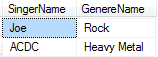
Executing the Stored procedure

EXEC GetSingersGenere1
‘<Singers>
<Singer>
Joe
</Singer>
<Singer>
ACDC
</Singer>
</Singers>’


image

Sql Server – Coding Guidelines and best practices

Object Type

Convention

Example

Tables

<ObjectName>

Employee
Department

Association tables

<Obeject1><Object2>

EmployeeDepartment

Stored Procedures

<TableName>_<OperationOnTable>

Employee_Select

Views

vw<TableName>


Scalar User-defined functions

<TableName>_<OperationOnTable>

Employee_GetTotalHrsWorked

Table valued user defined functions


Triggers

TR_<TableName>_<action><description>

TR_<Employee>_<UpdateEmailAddress>

Indexes

IX_<TableName>_<ColumnNamesSeparatedBy_>

IX_Employee_ID

Primary Key Constraints

PK_<TableName>

PK_Employee

Foreign Key Constraint

FK_<TableName1>_<TableName2>

FK_Employee_Department

· Datatype for a primary key :- uniqueidentifier
· Association tables should have a primary key
EmployeeDepartment should have ID, EmployeeId, DepartmentId.
· Avoid dynamic query. Use Stored procedures only.
· Use SET NOCOUNT ON in the beginning of Stored procedures and Triggers.
· Avoid Cursors wherever possible. Use SET based operations over row-by-row operations. Some of the scenarios are listed below:-
a) If rows in a table needs to be updated on a condition, rather than using a cursor or loop, used UPDATE with Case statements.

UPDATE Table table
SET Column1
Case
WHEN Column2=’1’
THEN Column1=’New value1’
WHEN Column3 = ‘2’
THEN Column1=’New value2’
END
WHERE
Column2=’1’ OR Column3=’2’
[Example]

b) If records in the table need to be updated or deleted, use UPDATE or DELETE with JOINs rather than cursors and loops.
UPDATE dbo.Table2
SET dbo.Table2.ColB = dbo.Table2.ColB + dbo.Table1.ColB
FROM dbo.Table2
INNER JOIN dbo.Table1
ON (dbo.Table2.ColA = dbo.Table1.ColA);

DELETE ab, b
FROM Authors AS a
INNER JOIN AuthorArticle AS ab ON a.AuthID=ab.AuthID
INNER JOIN Articles AS b ON ab.ArticleID=b.ArticleID
WHERE AuthorLastName=’Tom’;

· Instead of using LOOP to insert data from Table B to Table A, try to use SELECT statement with INSERT statement.
INSERT INTO TABLE A (column1, column2)
SELECT column1, column2
FROM TABLE B
WHERE <Condition>

· Create a copy of the table with out any data following way:-
SELECT TOP (0) * INTO EmployeeTest FROM Employee

· COUNT(*) and COUNT(1) are same performance-wise. Use either of them.

· Temparary Tables, Table variables and Common Table Expressions (CTE)
o Temporary tables should be used when the data you hold in them is pretty large. Creating indexes in them would make the data retrieval faster.
o Table variables are faster and good for smaller sets of data.
o Table variables do not have statistics on them and indexes cannot be created on them so they are not good for holding large data.
o Common Table Expressions are good for having smaller sets of data which need not be updated because it’s similar to a derived table but has better readability and you can use the same CTE in the different places in the batch.
o Use CTE for creating recursive queries.